
4 RRL Remote Radio Link Network Configuration
 on your desktop.
4.1 Software Administrator Window
After the Software has been started, the Administrator window will open. From here you can create new RRL Remote Radio Link Networks, edit existing networks (remote updates), delete existing networks, set up barometric compensation (if the internal barometer is not used), and open site data.
Note:
When opening the Software for the first time, you will be prompted to the Network Setup screen before the Administrator is shown.
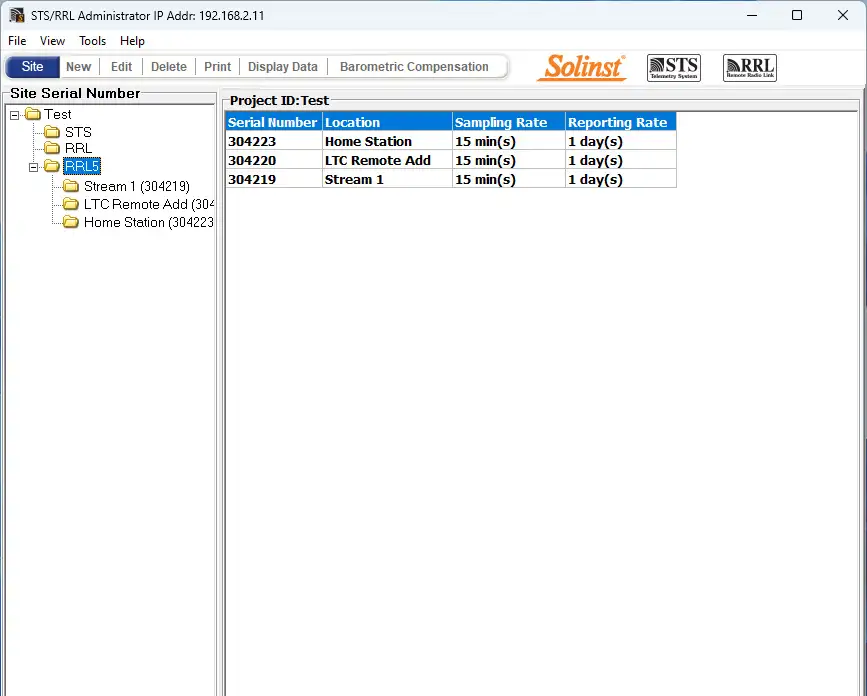
Figure 4-1 Administrator Window – Network Information
Note:
STS Telemetry Sites will also be listed in the Administrator Window. See separate User Guides for more information on STS Telemetry Systems.
Selecting a network from the list will display all of the stations in the network, along with the report and sampling rates. Selecting a station from the list will display information on the Station Battery Strength, Station Signal Strength, Last Update Time and network details (including Project ID, Location, Number of Dataloggers, etc). Information for each datalogger connected to the site is displayed, including instrument type, serial number, and battery strength.
Note:
Selecting “Delete” when a RRL Network is highlighted, will not allow you to delete that network, until all stations in that network are deleted first. To delete a RRL Station from the list, click to highlight the serial number, and select “Delete” from the main menu bar.
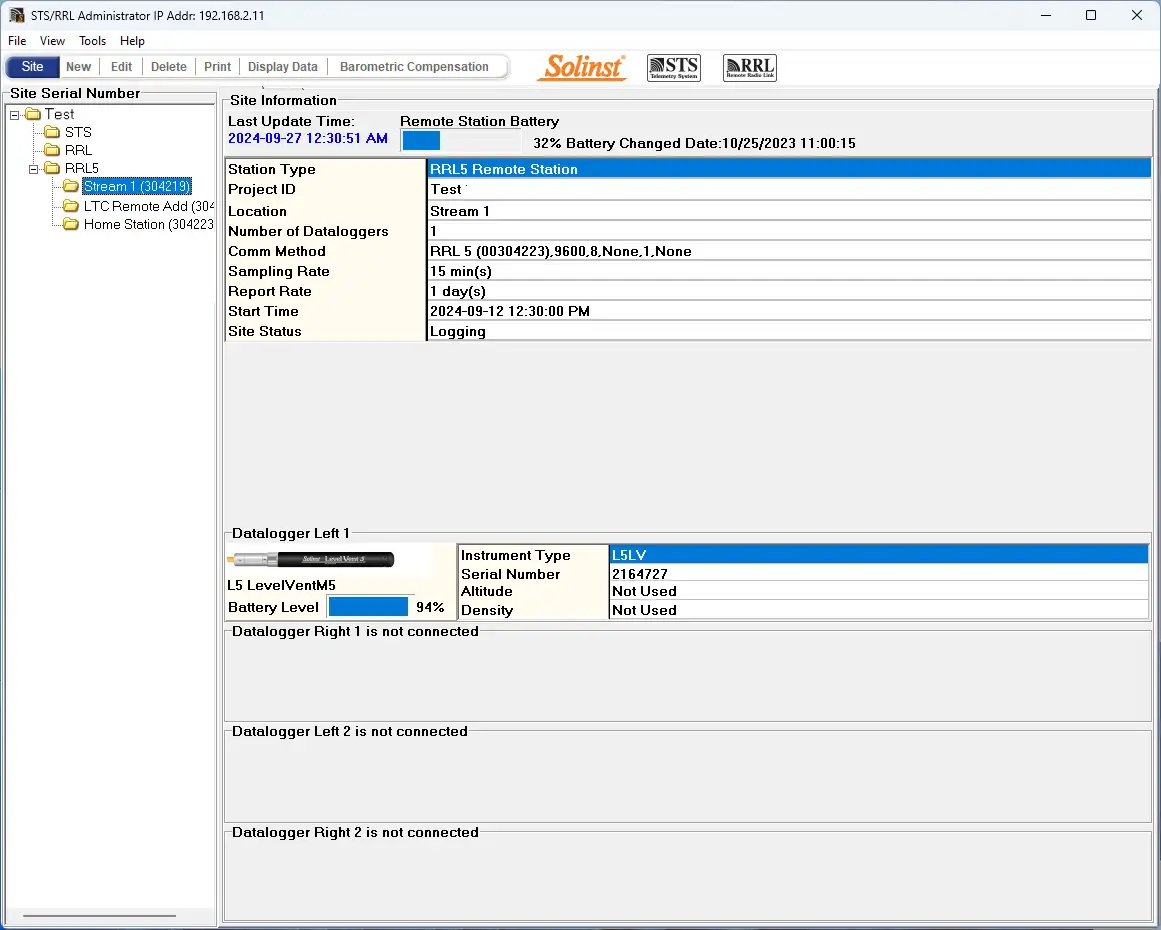
Figure 4-2 Administrator Window – Station Information
- Last Update Time: The last time the Home Station was contacted
- Remote Station Battery: Percentage of strength left in the RRL Station battery and the last date and time that the batteries were replaced.
Note:
Selecting “Delete” when a RRL Network is highlighted, will not allow you to delete that network, until all stations in that network are deleted first. To delete a RRL Station from the list, click to highlight the serial number, and select “Delete” from the main menu bar.
- Station Type: Identifies whether the station has been programmed as a Remote Station or Home Station.
- Project ID: Your own identification system that you input.
- Location: Specific site / location information you input.
- Number of Dataloggers: The number of dataloggers that are connected to the RRL Station.
- Comm Method: Indicates the COM Port that is being used at the Home Station computer for communication.
- Sampling Rate: The Sample Rate of the RRL 5 Station.
- Report Rate: The Report Rate of the RRL 5 Station.
- Start Time: The date and time that the RRL Station started collecting data.
- Site Status: Will show the status of the RRL Station, i.e. “Logging”, “Waiting for Update”.
4.2 Programming a RRL 5 Network (Software Wizard)
Step 1: Create New Site
Selecting “New” in the Administrator window main menu opens the Network Setup Screen. It will also open when the software is started for the first time. Choose to set up a RRL 5 Network, which will start the software wizard.
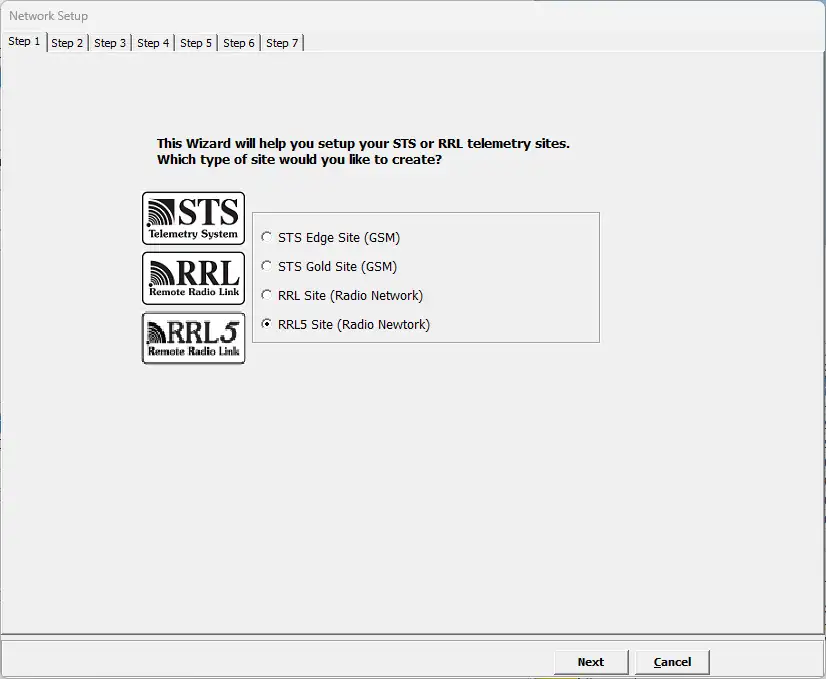
Figure 4-3 Network Setup Screen
Step 2: Network Configuration
After you select “RRL 5 Site”, the RRL Network Setup screen will open. In this screen you will enter the settings for your RRL 5 Network. At this point you should connect the RRL 5 Station you are about to program to the Home Station computer (see Section 3.3). Programming the Home Station is always first.
- Project Identification: Input the unique name you choose to identify your project/site.
- Network ID: Select a number to identify the network. There may be more than one network reporting to the same Home Station computer. There can be a maximum of 5 networks reporting to the same Home Station. This is to avoid radio communication conflict between adjacent networks. Each RRL 5 Station in the same network should use the same ID number.
- Home Station Connection: When connecting your RRL 5 Home Station to a PC, identify the Master Com Port being used for communication between the computer and the RRL 5 Home Station. Click Refresh if you connect a new RRL 5.
- Number of Home Stations: This is always 1.
- Number of Remote Stations: Enter the number of Remote Stations in your network.
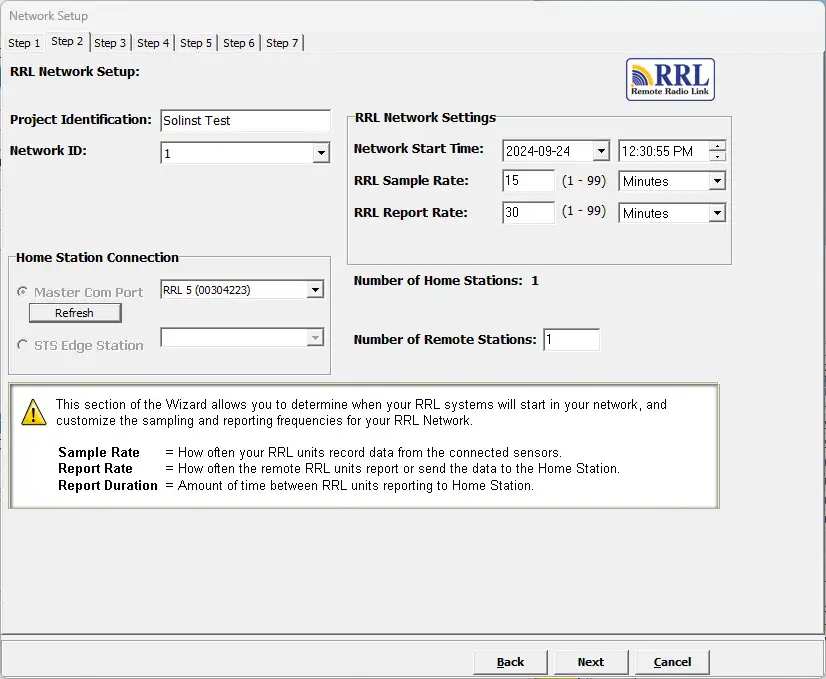
Figure 4-4 RRL Network Setup Screen
RRL Network Settings:
Network Start Time: Enter the date and time your RRL 5 Remote Stations will begin collecting data from the attached dataloggers.
Sample Rate: Is the frequency the RRL 5 Remote Stations collect real-time readings from each of the attached dataloggers. The Sample Rate can be set from 1 second to 99 hours. You can choose to set each station with a different Sample Rate. This can be done in Step 4 when you are setting up each individual station, otherwise all stations will have the same sampling rate as set in this step.
Report Rate is the rate at which stored data is sent from a Remote Station to the Home Station. The Report Rate can be set from 1 minute to 99 hours.
Note:
Longer Report Rate intervals will conserve battery power at Remote Stations.
Step 3: Configuration Progress
Step 3 is a transition screen. At this point you should connect the RRL 5 Station you are about to program to the Home Station computer (see Section 3.3), if not done already. Programming the Home Station is always first. This screen shows you the RRL Stations you will be configuring your RRL 5 Network.
Note:
It is recommended you connect your dataloggers to each RRL 5 Station before programming.
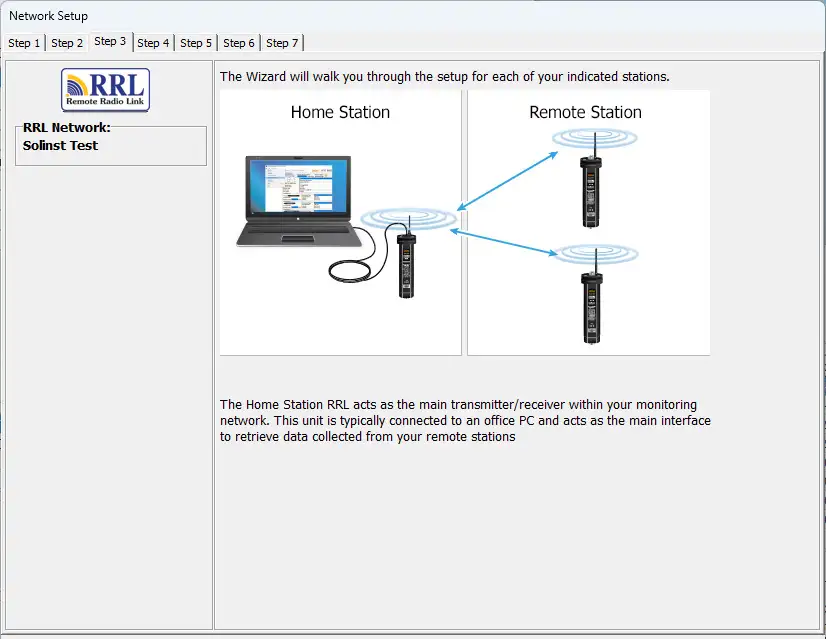
Figure 4-5 RRL Software Wizard Transition Screen
Step 4: Programming Your RRL 5 Station
In Step 4, enter the serial number of the RRL 5 Station you are programming; the Location of the Station, i.e.: “Home Station”, “Well 1”, “Remote Station 2”; the Com Port being used to program the RRL 5 Station (click refresh if connecting a new RRL 5); and the Sample Rate for that station (if different from the one set in Step 2).
If you are programming the Home Station, you will select whether there is a datalogger connected to the station. If there is not, you will skip to Step 6. If there is a datalogger connected, or you are programming a Remote Station, you will proceed to Step 5.
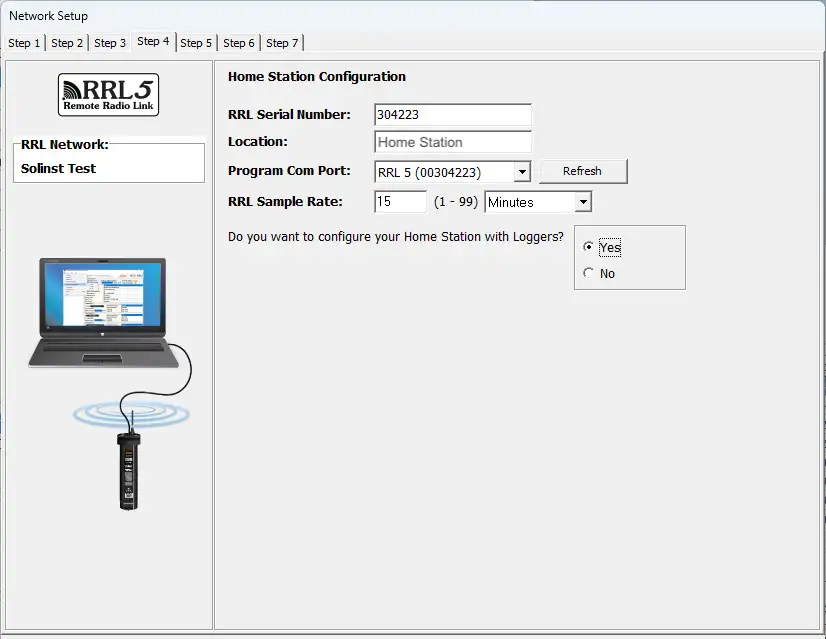
Figure 4-6 Programming a RRL Station
Step 5: Configuring Attached Dataloggers
In this step you will select the number and types of dataloggers connected to the RRL 5 Station. If using a Splitter, the number 1 or 2 will identify the dataloggers. The numbers 1 and 2 are labeled directly on the connections of each Splitter.
Barometer Setup: If you are not connecting a Barologger as the second datalogger, you can choose to Enable the internal barometer of the RRL 5. You will select the unit of measurement for the pressure readings from the drop-down menu; the options are kPa, mbar, and psi. This will allow reported water level readings to be automatically barometrically compensated.
For each connection you will select the type of datalogger attached. Select ‘NONE’ for connectors with no datalogger attached. After selecting the datalogger type from the drop down menu, an image of the selected datalogger will be displayed.
Note:
The firmware versions shown in red for each datalogger, are the firmware versions that will work with the current Solinst Telemetry Software version.
To optionally set each datalogger to record in their internal memory, select Edit to begin entering data collection information.
Note:
Dataloggers programmed to record and store readings in their internal, non-volatile memory, provide reliable back-up data. This will, however, cause their internal battery to be used up more quickly.
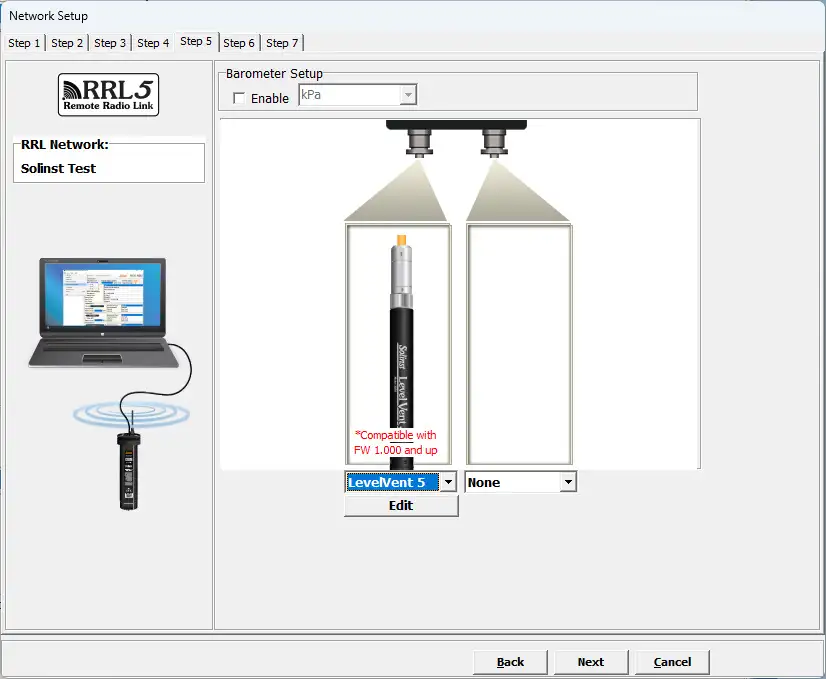
Figure 4-7 Enabling Barometer and Adding Dataloggers
4.2.1 Editing Datalogger Information

Figure 4-8 Datalogger Information Window
The Datalogger Information window includes Datalogger Serial Number, Well Location, Sample Rate, and Memory Mode Selection.
If you do not require independent logging, select  and the RRL 5 Station will only collect a real-time reading from the datalogger at the scheduled Sample Rate. There is no need to enter a Sample Rate.
If you want your datalogger to record and store readings in its internal memory, independent of RRL 5 operation, fill in the Sample Rate and Memory Mode Selection fields, and select  if independent logging has been stopped.
- Serial Number: Your datalogger Serial Number will display after the System is started.
- Well Location: Input specific site / location information.
- Sample Rate: Is linear. Linear refers to a set time interval between collection of readings. The default sample rate is set to 15 minutes.
- Memory Mode Selection: There is a choice of Continuous Logging (wrap around) or Slate Logging. In Continuous Logging the new log is started at the end of any previous log and continues logging, eventually recording over the first logged data. As one of the download options is to ‘Append Data’, Continuous Logging can be a preferred choice when logging long-term. In Slate Logging the new log is also started at the end of any previous log, but will stop recordings when the memory is full, so that the beginning of the current log will not be written over. Rainloggers record in Slate mode only.
Note:
In Slate Logging, the datalogger will stop recording readings after its memory is full. Therefore, Continuous Logging is recommended for long term monitoring applications.
Please refer to the chart below for a summary of the available sampling and memory options for each datalogger type (See the Levelogger User Guide for previous Levelogger models).
Datalogger Programming Options






Table 4-1 Datalogger Programming Options
Note:
If you are programming a number of dataloggers with the same settings, select “Save Settings” after programming the first datalogger. Select “Load Settings” when starting to set up your next datalogger to apply the saved settings.
Setting Up Datalogger Measurement Parameters
In the lower portion of the Datalogger Information screen is the window for setting channel parameters. The software will detect the available channels when the Datalogger Information settings are read.
For the Level Channel, you can set the following parameters:
- Identification describes the measurement parameter of the channel and has already been configured as ‘LEVEL’. The Level Channel monitors water column equivalent pressure. The Identification field will be the data column heading and graph line name when viewing the data.
- Units refers to the channel’s units of measurement. There are six units of measure available for the user to select: m (default), cm, ft, kPa, mbar, and psi. When using a Barologger, the options are kPa (default), mbar, and psi.
- Offset refers to an offset correction, such as the distance between the tip of the datalogger and the monitoring well cap or static water level. It is recommended that the value of 0.00 be used for offset as this keeps all subsequent readings relative to the tip of the datalogger. The offset range is -1000 to 16400 ft or -300 m to 5000 m.
The Temperature Channel includes the following parameters: - Identification describes the measurement parameter of the channel and has already been configured as ‘TEMPERATURE’
- Units refers to the channel’s units of measurement. The temperature channel can be set to ºC (default) or ºF.
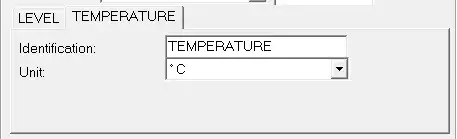
Figure 4-9 The Temperature Channel
The Conductivity Channel includes the following parameters:
- Identification describes the measurement parameter of the channel and has already been configured as ‘Conductivity’ .The Identification field will be the channel heading, data column heading and graph line name when viewing the data.
- Unit refers to the channel’s units of measurement. There are two units of measure available for the user to select: mS/cm or μS/cm.
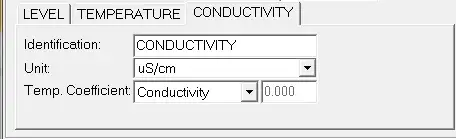
Figure 4-10 LTC Levelogger Measurement Parameters
Rainlogger Measurement Parameters:
Note:
You must program your Rainloggers in order to enter a Rainfall Cal Constant (the amount of rainfall per tip of
the rain gauge), but you do not have to set them to record independently.
There is one channel of measurement for Rainloggers. The ‘RainFall’ Channel records each tip time by the connected tipping-bucket and outputs the amount of rainfall per tip (input Rainfall Cal Constant). When an RRL Remote Station reports Rainlogger data to the Home Station, it will send the accumulated rainfall amount per sample period (based on RRL 5 Station Sample Rate). To determine the exact time that a tip occurred, the Rainlogger would have to be set to record in its own internal memory, which stores each tip event.
- Identification describes the measurement parameter of the channel and has already been configured as ‘RainFall’. The channel can be re-named to suit each project. The Identification field will be the channel heading, data column heading and graph line name when viewing the data. Identification is limited to 32 characters.
- Units refers to the channel’s unit of measurement. There are two units of measure available for the user to select: mm or in.
- The Rainfall Cal Constant field allows you to enter the calibration factor for the tippingbucket you will be using. The calibration factor is the amount of rainfall depth (mm, in) per tip. The calibration factor should be indicated on a label on the tipping-bucket device or in the manufacturer’s documentation. Input the calibration factor in mm or inches.
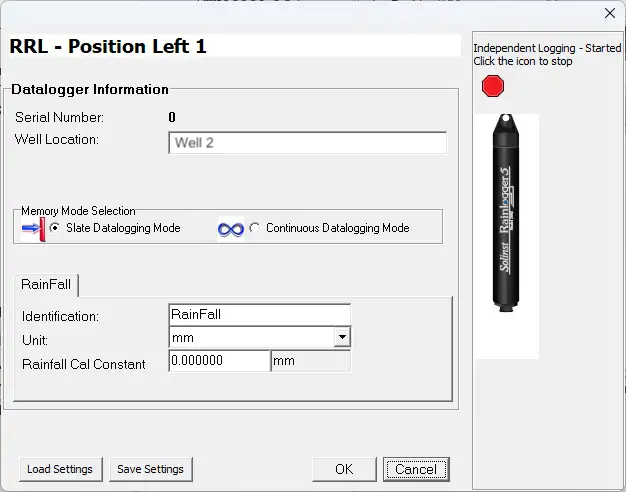
Figure 4-11 Rainlogger Measurement Parameters
Note:
When an RRL 5 reports Rainlogger data to the Home Station, it will send the accumulated rainfall per sample period (based on RRL 5 Sample Rate).
Step 6: Confirm Station Settings
In this step, select “Retrieve RRL Info”. This will apply all the settings to the RRL 5 Station and retrieve information from that station to confirm it has been successfully programmed.
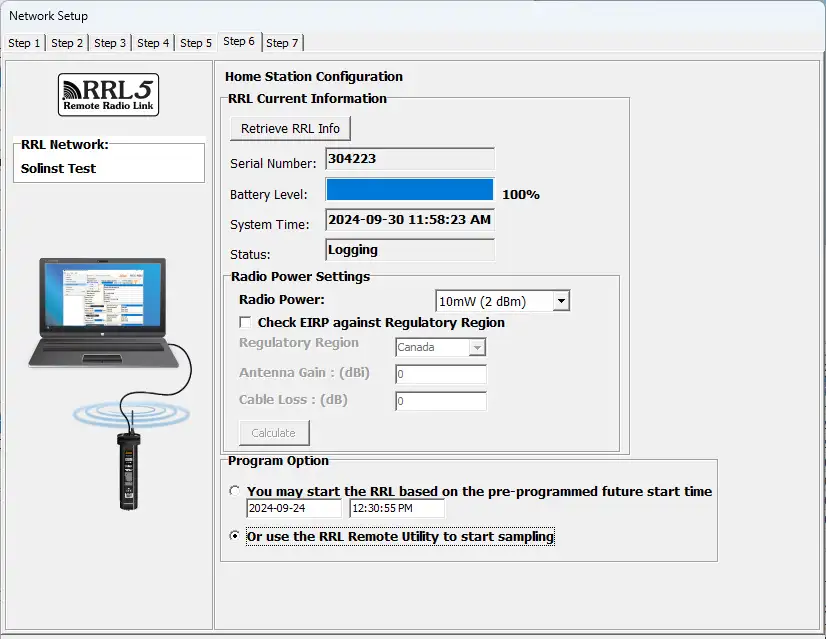
Figure 4-12 RRL Station Information
- Serial Number: Should match the serial number you entered in Step 2.
- Battery Level: The internal battery level of the RRL 5 Station
- System Time: The internal system time of the RRL 5 Station
- Status: The RRL 5 Station is “Logging” or “Future Started”.
- Radio Power Settings: Selecting a lower power setting can reduce power consumption, however, the communication distance is directly proportional to the radio power. Choose 1 mW to maximize battery life. Choose 1W to maximize the communication distance.
Note:
If a higher Radio Power setting is selected, the battery at the RRL 5 Station will be drained more quickly.
Note:
If the highest Radio Power setting is still not adequate to communicate the distance required, you may need a more sensitive antenna.
If you are in an area that has regulations on the maximum allowed radiated power, you can use the calculator provided to determine the EIRP of the RRL 5 Station and see if it meets the requirements for your selected region.
You will also select whether you wish to start this station using the Programmed Start Time entered in Step 2, or use the Remote Utility to start the station at a different time (see Section 5).
- Sampling based on the Future Start Time: The RRL 5 Station will start sampling based on the start time you set in Step 2.
- Use RRL Remote Utility to Start Sampling: The RRL 5 Station will stay in stop mode. To start sampling, you have to use the RRL Remote Utility (see Section 5).
If you are programming the Home Station or one of multiple Remote Stations, you will be prompted to the transition screen in Step 3.
You will proceed through Steps 3 to 6 until all stations have been programmed. See Figure 4-13.
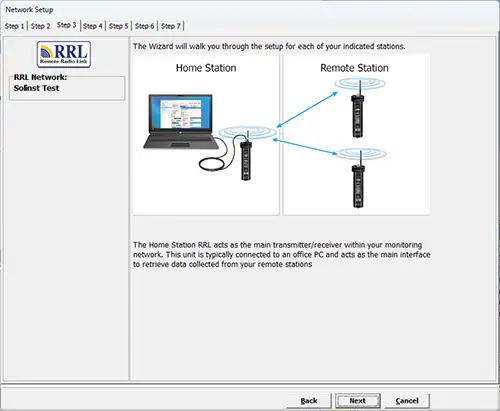
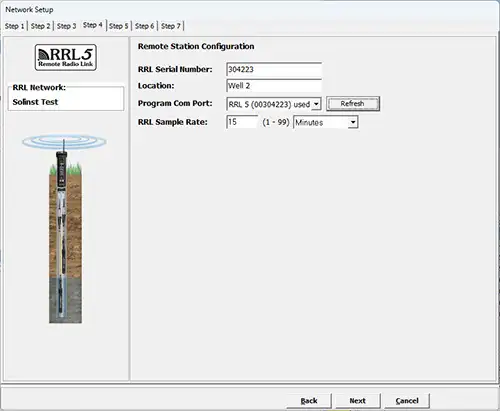
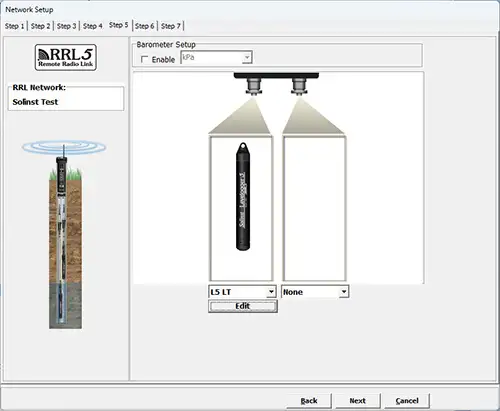
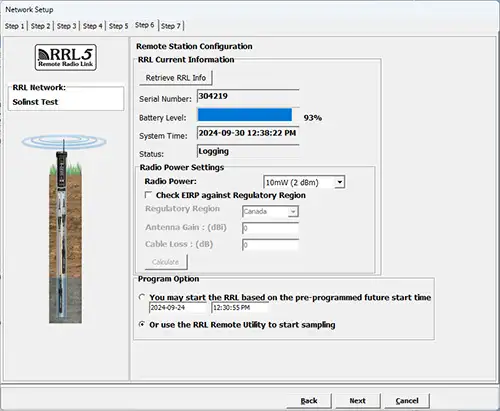
Figure 4-13 Configuring a Remote Station
Step 7: RRL Network Configuration Summary
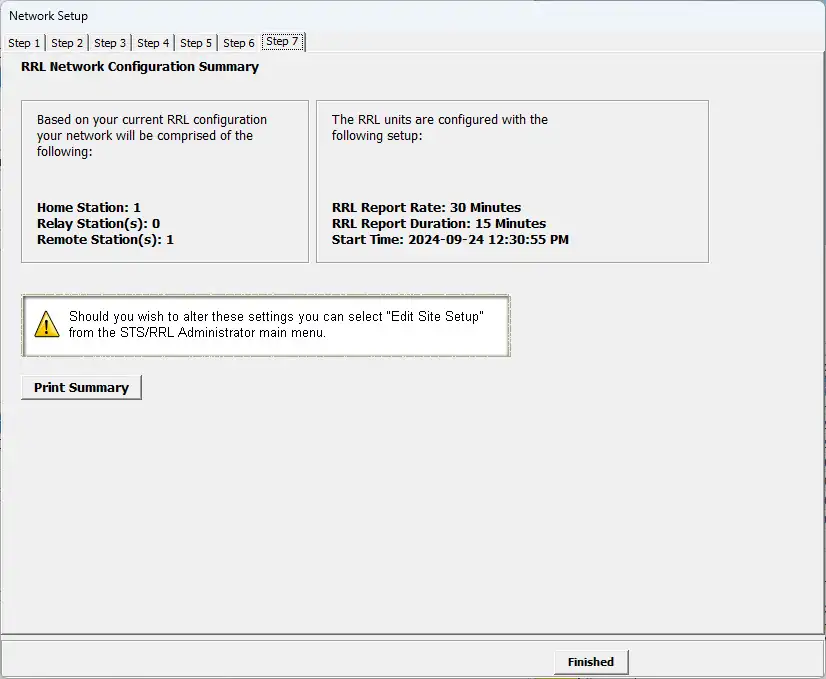
Figure 4-14 RRL Network Configuration Summary
After all settings have been programmed for each RRL 5 Station in the network, Step 7 will display a summary of all the settings. You can print a copy of this summary for your records.
Selecting ‘Finished’ will open the STS/RRL Administrator window and start the Communication Agent.
Note:
Once all stations have been programmed, it is recommended you start each station logging as a test in the office. This can be done using the Remote Utility (see Section 5). After each station is started, and has contacted the Home Station, the serial numbers and types of dataloggers connected to the station will be shown in the Administrator Window. You can print a copy of this screen for each station as a record, and refer to it when installing your stations in the field.
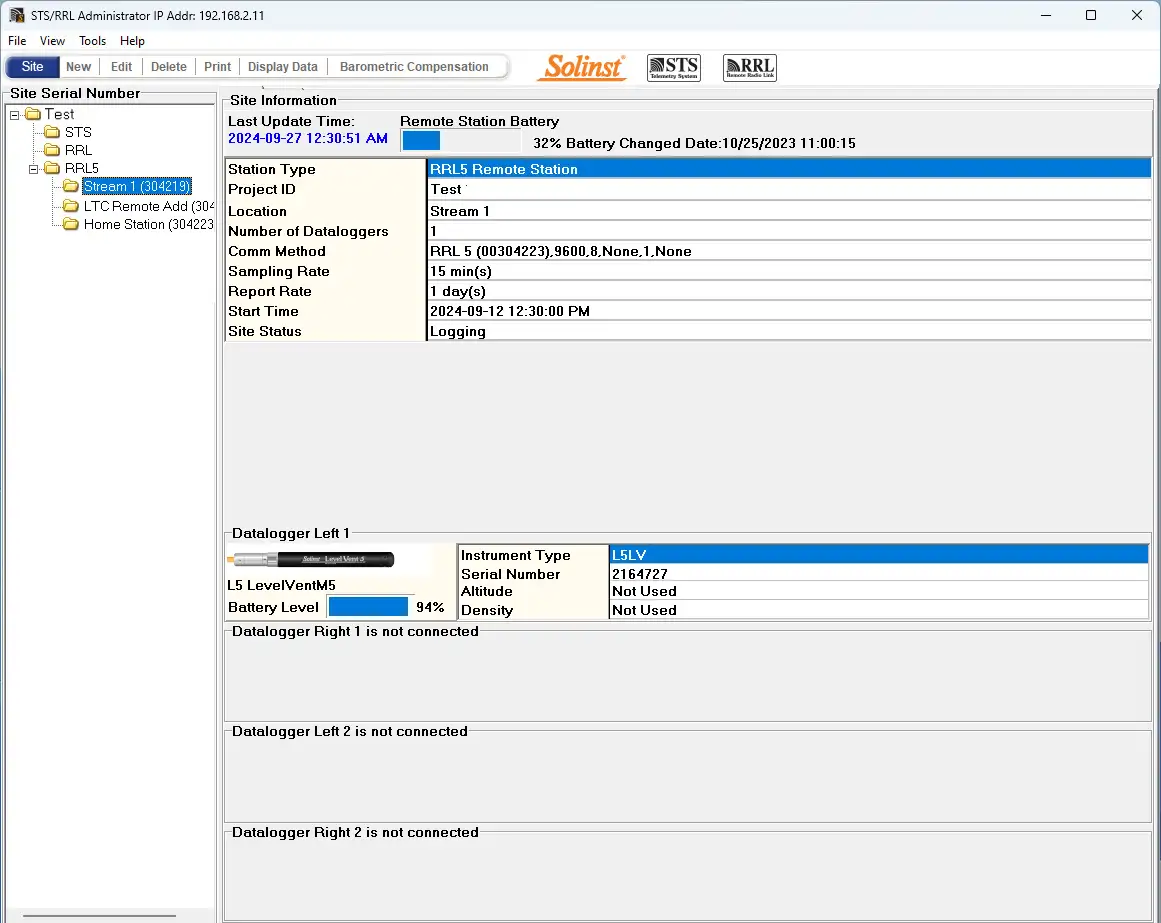
Figure 4-15 RRL Network in Administrator Window
4.2.2 Editing RRL 5 Networks
Editing the Network Setup
When you select a RRL 5 Network from the list in the STS/RRL Administrator window, choosing “Edit Site Setup” will allow you to “Edit Network Setup” or “Add new Site to Network”.
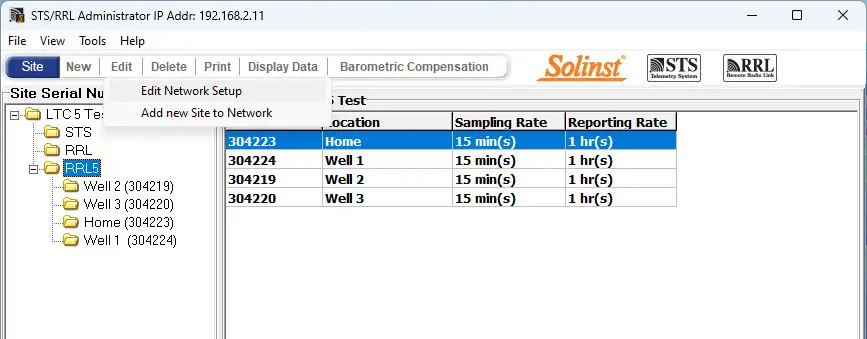
Figure 4-16 Editing a RRL 5 Network
When you select “Edit Network Setup” there are two options. You can choose to update each RRL 5 Station in the network by connecting them to the PC with a USB cable or the “Remote Schedule Update” allows you to make the changes in the software, and the new settings will be applied to each RRL 5 Station with their next scheduled report to the Home Station.
Note:
Selecting “Delete” when a RRL 5 Network is highlighted, will not allow you to delete that network, until all stations in that network are deleted first. To delete a RRL 5 Station from the list, click to highlight the serial number, and select “Delete” from the main menu bar.
If you choose “Remote Schedule Update”, there are two steps. Step 1 allows you to make changes to the network settings, including: Project Identification, Network ID, and Radio Power. You can also restart the network with a new Report Rate.
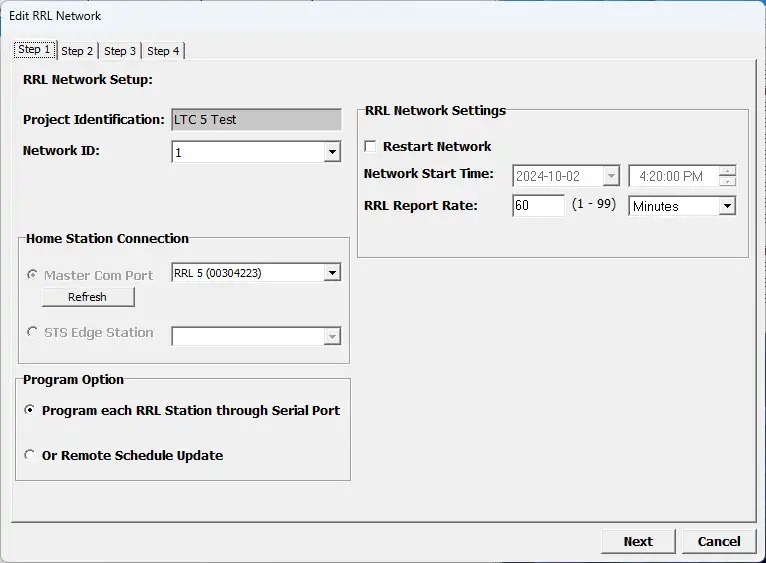
Figure 4-17 Editing a RRL 5 Network – Step 1
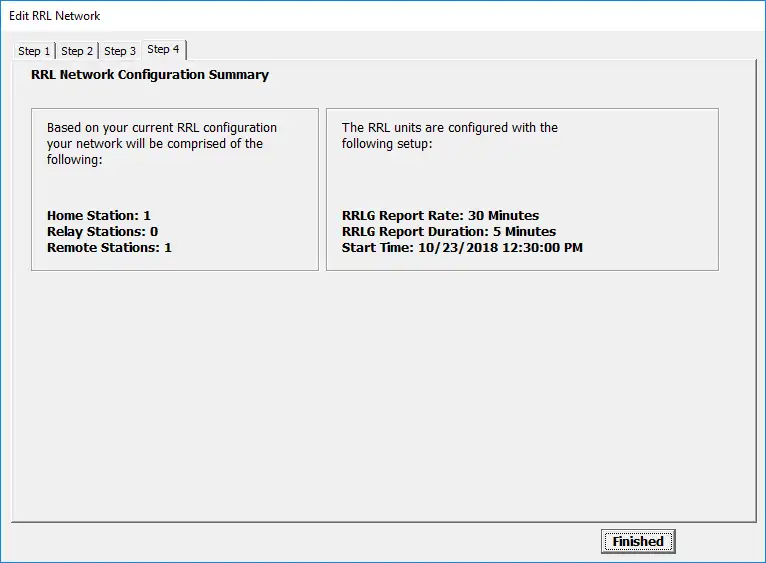
Figure 4- 18 Editing a RRL 5 Network – Step 2
Note:
Figure 4-18 shows 4 steps. This is because the option to update each RRL 5 Station through the serial port was selected. Steps 2 and 3 in this case are for connecting the two Remote RRL 5 Stations in the network, to the PC and updating their settings. Step 4 provides the summary.
If you select to update each RRL 5 Station through the serial port, after changing the setting in Step 1, you will be prompted to connect each RRL 5 Station to the Home Station PC with a USB cable, and update them with the new network settings. The last step will provide you with a Network Configuration Summary for your records.
When you select “Add new Site to Network”, you will be prompted though Steps 2 through 7 of the software wizard.
Editing RRL 5 Stations
When you select a specific RRL 5 Station from the list in the STS/RRL Administrator window, choosing “Edit
Site Setup” will allow you to edit the settings for that RRL 5 Station.
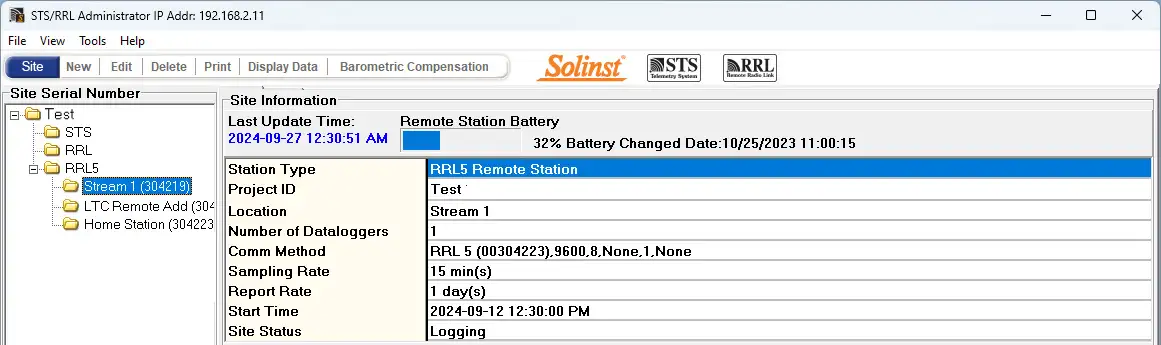
Figure 4-19 Editing a RRL 5 Station
Note:
Selecting “Delete” when a RRL 5 Station is highlighted will prompt a window asking if you are sure you want to delete that station. You must delete all stations in a site before the entire network can be deleted.
There are three steps when editing a RRL 5 Station’s settings. Step 1 allows you to enter a new Location, Program Com Port and Sample Rate. Step 2 allows you to add or edit the attached dataloggers and their settings, including enabling the RRL internal Barometer. Step 3 retrieves the new settings, allows you to change the Radio Power, and allows you to choose between applying the changes to the RRL 5
Station by connecting it to the PC, or the “Remote Schedule Update” allows you to make the changes in the software, and the new settings will be applied to the RRL 5 Station with its next scheduled report to the Home Station.
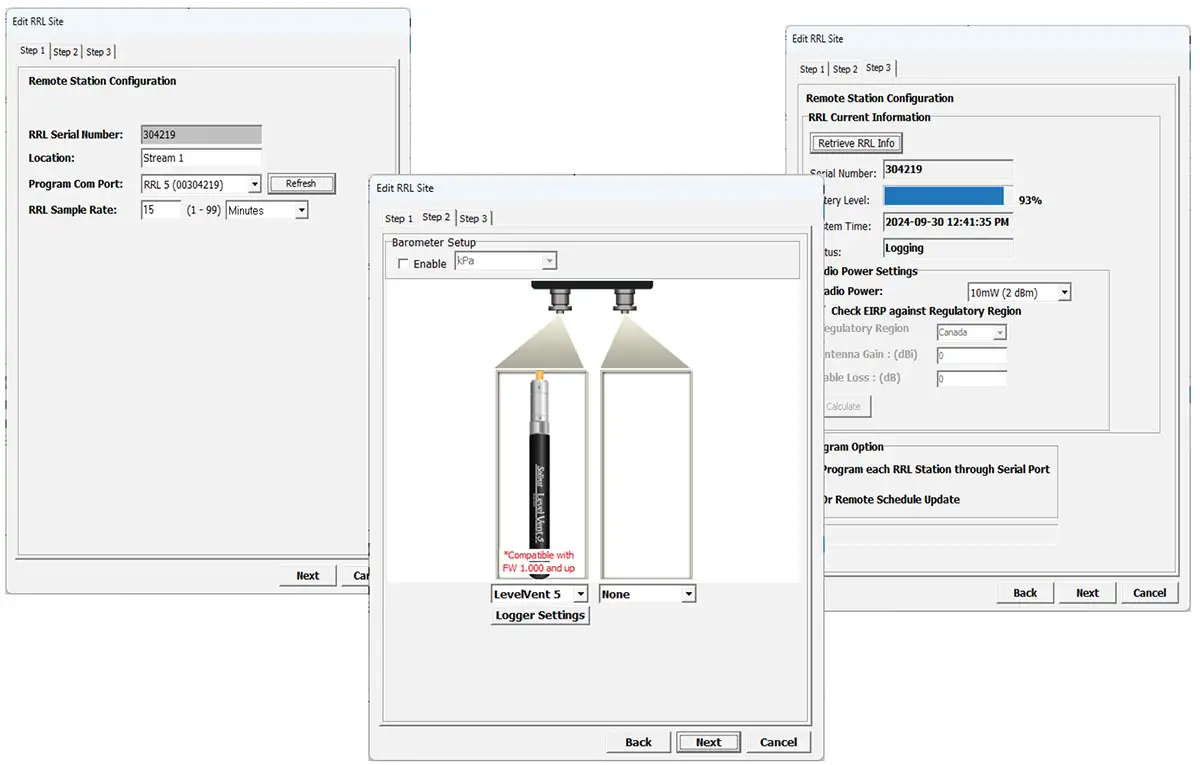
Figure 4-20 Editing a RRL Station
4.3 Barometric Compensation
Submersed Leveloggers measure total or absolute pressure (water column equivalent + barometric pressure). In order to accurately determine the true changes in water level only, Levelogger data must be barometrically compensated. Compensation simply involves subtraction of the barometric reading from the corresponding Levelogger reading. This can be done by enabling the internal RRL 5 barometer (see Section 4.2) or by using a Barologger.
Levelogger data can be barometrically compensated using data from a local Barologger (one Barologger can cover all Leveloggers within a 30 km/20 mile radius or per 300 m/1000 ft change in elevation) using the Barometric Compensation application in the STS /RRL Administrator.
The Levelogger and Barologger must have the same time stamp in order for the compensation to be successful. A Barologger 5 or Barologger Edge can be used to compensate the data from any version of Levelogger.
Note:
Alternatively, RRL 5 data files can be exported using the STS/RRL Administrator as *.xle or *.lev files and opened in Levelogger Software for barometric compensation. See the Levelogger User Guide for more details.
To begin the compensation, click the Barometric Compensation tab on the STS/RRL Administrator window.
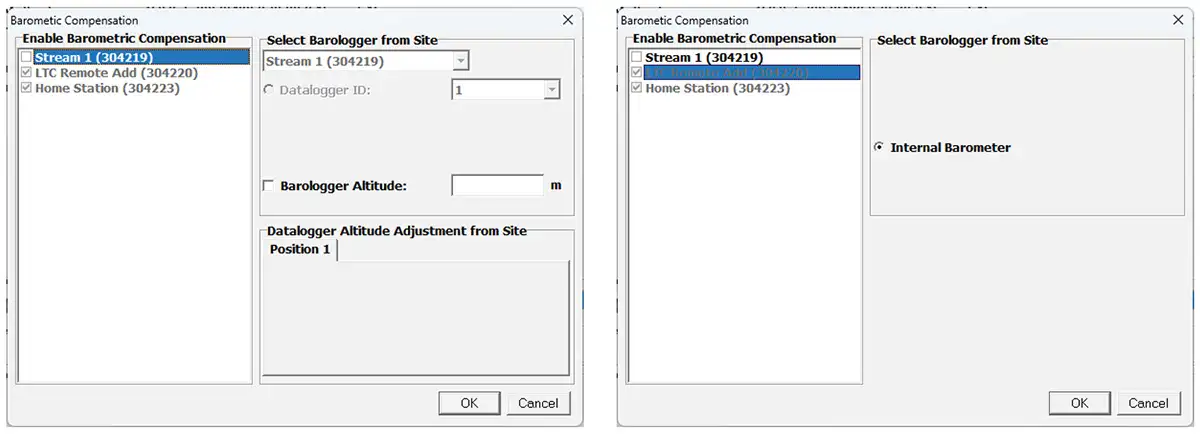
Figure 4-21 Barometric Compensation
In the Barometric Compensation Window, from the “Enable Barometric Compensation” list, check the RRL 5 Station that you wish to compensate, and RRL 5 Station (or STS Site) that will provide the Barologger for the compensation.
Note:
If you select a site to Enable Barometric Compensation, but the internal barometer of the RRL Station has already been enabled, this will be indicated.
In the “Select Barologger from Site” section, select the RRL 5 Station (or STS Site) that contains the Barologger you wish to use for the compensation, and identify the Barologger by its position (Datalogger ID) on the RRL 5 Station (or STS Site).
The Levelogger and Barologger must have the same time stamp in order for the compensation to be successful.
To account for different deployment altitudes in your compensation, you can choose to enter an altitude for your Barologger and each datalogger.
Click OK to complete the barometric compensation set up.
To view compensated data, see Section 7.2.1
4.4 Communication Agent
The Communication Agent is an information window that will display all communication activity that has occurred between a RRL 5 Station and the Home Station computer. This application is used to view activity, and monitor communication for diagnostic purposes.
To open the Communication Agent, click  , on your desktop.
The Communication Agent must be opened before your RRL 5 Network starts logging and must remain running while the RRL 5 System is in operation. If the Communication Agent is closed, the Remote Station will save data until the Communication Agent is reopened. The accumulated data will then be sent with the next scheduled report.
The Communication Agent will automatically open after you have finished configuring your RRL 5 Network. The Communication Agent can be left open, and minimized even after the STS/RRL Administrator Software has been closed.
In the Messages tab, the serial number of each RRL 5 Station and datalogger will be shown to indicate which communication has come from that site. Each report will be time and date stamped. Log files for each RRL 5 Station are automatically saved on your Home Station PC, and can be retrieved from the following location: <C:\Program Files\Solinst\STS_Gold\log>
If a station is stopped, when started again, the data will be appended to the same log file. At any time, clicking the Save icon will save a log file of all RRL 5 Stations on your Home Station PC for record or for diagnostic purposes.
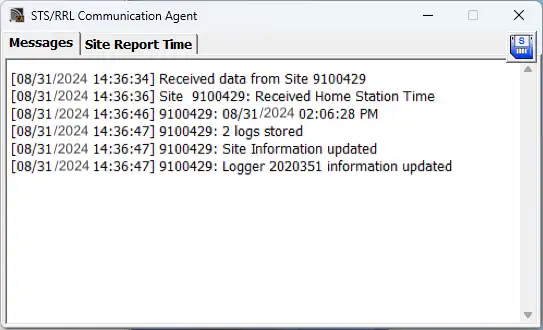
Figure 4-22 Communication Window
The Site Report Time tab lists each RRL 5 Station by serial number and shows the next time it is scheduled to report to the Home Station.
If there is a communication conflict and the Remote Station does not report when scheduled, a timeout message will be shown in the Communication Agent Messages. To stop receiving timeout messages from a station (you may be aware of what is causing the communication issue, and do not need the messages any longer), uncheck the box beside the Station.
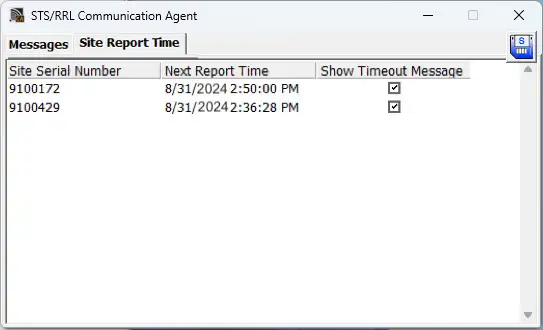
Figure 4-23 Communication Window – Site Report Time
Related Products
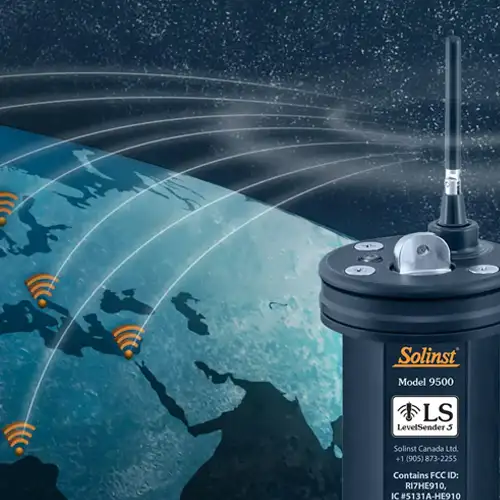
Plug and Play Telemetry
Already own Leveloggers? Quickly and easily upgrade your monitoring wells with LevelSender Telemetry. The 4G LevelSender 5 telemetry system features an optional Solinst SIM card. It is set up for you in advance—with a low-cost plan managed by Solinst! An internal barometer provides automatically compensated water level readings; set high/low level alarms.
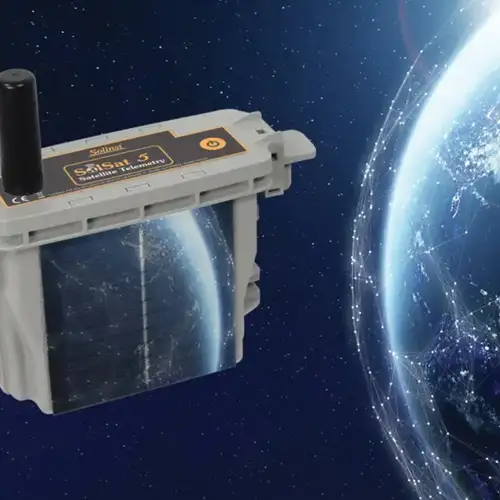
Discover Anywhere Monitoring
SolSat 5 is a telemetry system that leverages Iridium satellite technology to provide global connectivity for Solinst 5 Series dataloggers. It uses low cost TextAnywhere global satellite messaging to send remote data to a secure web portal. It features a robust weatherproof enclosure for installation almost anywhere. Features built-in Wi-Fi setup app, solar panel, and barometer.
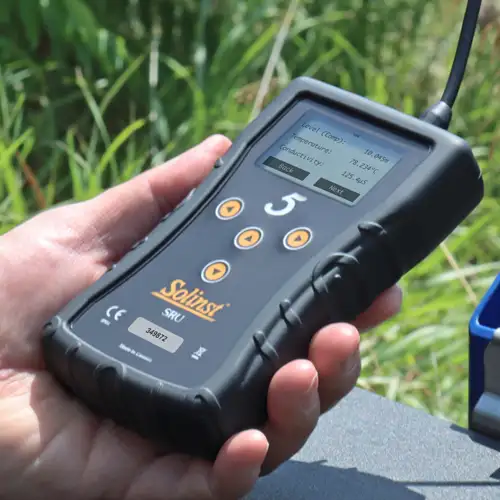
Solinst Readout Unit (SRU)
The Solinst Readout Unit (SRU) is a rugged, handheld device designed to connect to a deployed Solinst datalogger and display instant water level readings – with the option of automatic barometric compensation. Real-time logging and downloaded data can be saved and transferred to a PC. Quickly check the datalogger's status.
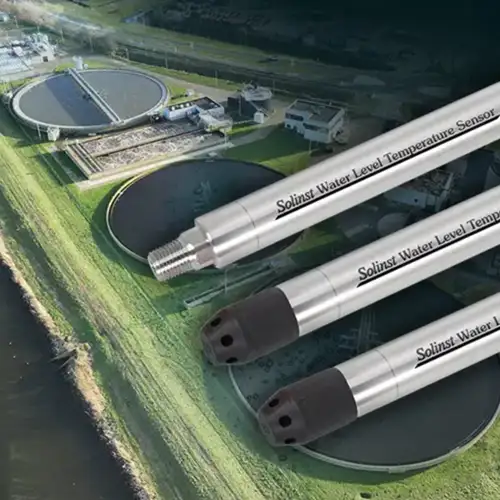
Versatile Submersible Water Level Transmitter
The 301 Water Level Temperature Sensor provides the option of highly accurate water level transmission using multiple protocols – MODBUS, SDI-12 and 4-20mA – for a wide variety of applications. This compact, all-in-one submersible hydrostatic level transmitter provides continuous, stable water level and temperature readings, with options for absolute and gauged pressure sensors.


