
7 Viewing RRL Remote Radio Link Site Data
7.1 Access Database
Data received in each report from a RRL 5 Station is placed in a Microsoft® Access® database (.mdb files) on the Home Station computer. New data is appended to the existing database. The program will save data downloaded to the following default directory: <C:\Program Files\Solinst\STS_Gold\db> The location of the default directory may vary for different Windows operating systems.
Note:
The *.mdb file may be located in a different directory than the default location. It is often found under your User account instead of Program Files. To easily find the location of the *.mdb file, search for “sts_gold.mdb” in the C drive.
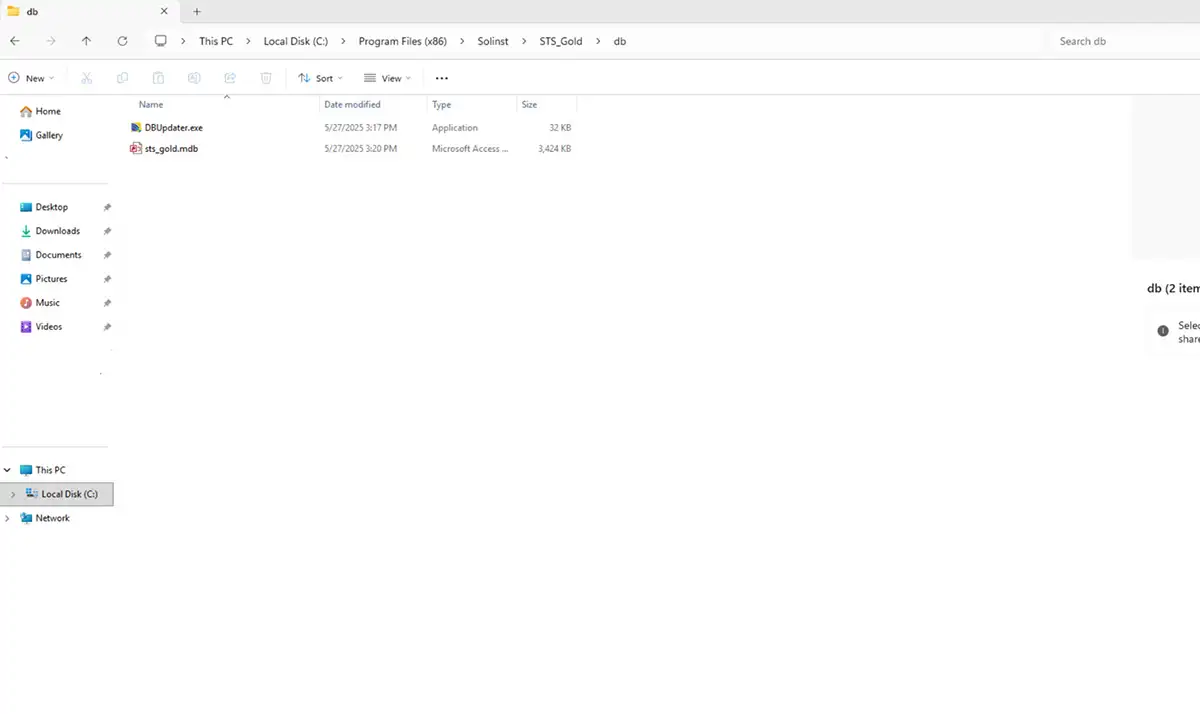
Figure 7-1 RRL Remote Radio Link Access Data
The Access database can be queried by your own macros or applications, to automatically check for updates and display the data in your own program, on a website, or in any way you choose.
7.2 View Using Solinst Telemetry Software
The Solinst Telemetry Software can be used for a quick check of the latest readings. Data can also be exported using the Software as *.xle, *.lev or *.csv files for use in other programs.
To view data from a specific site using the Solinst Telemetry Software, open the Administrator window and select a RRL 5 Network or station from the list. Click on “Display Data”.
Select the RRL 5 Station from the list that opens and click OK.
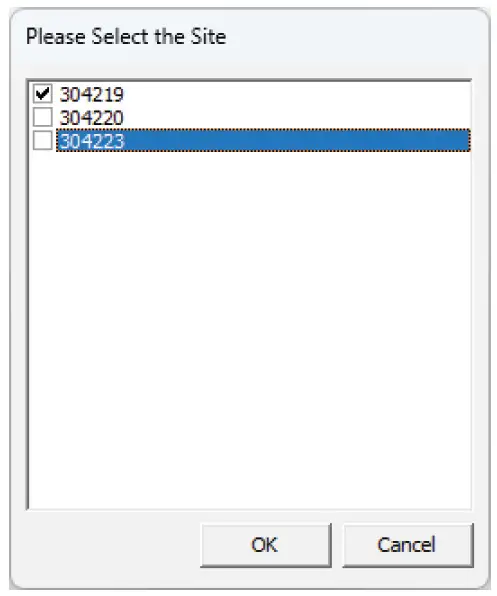
Figure 7-2 Select RRL 5 Station
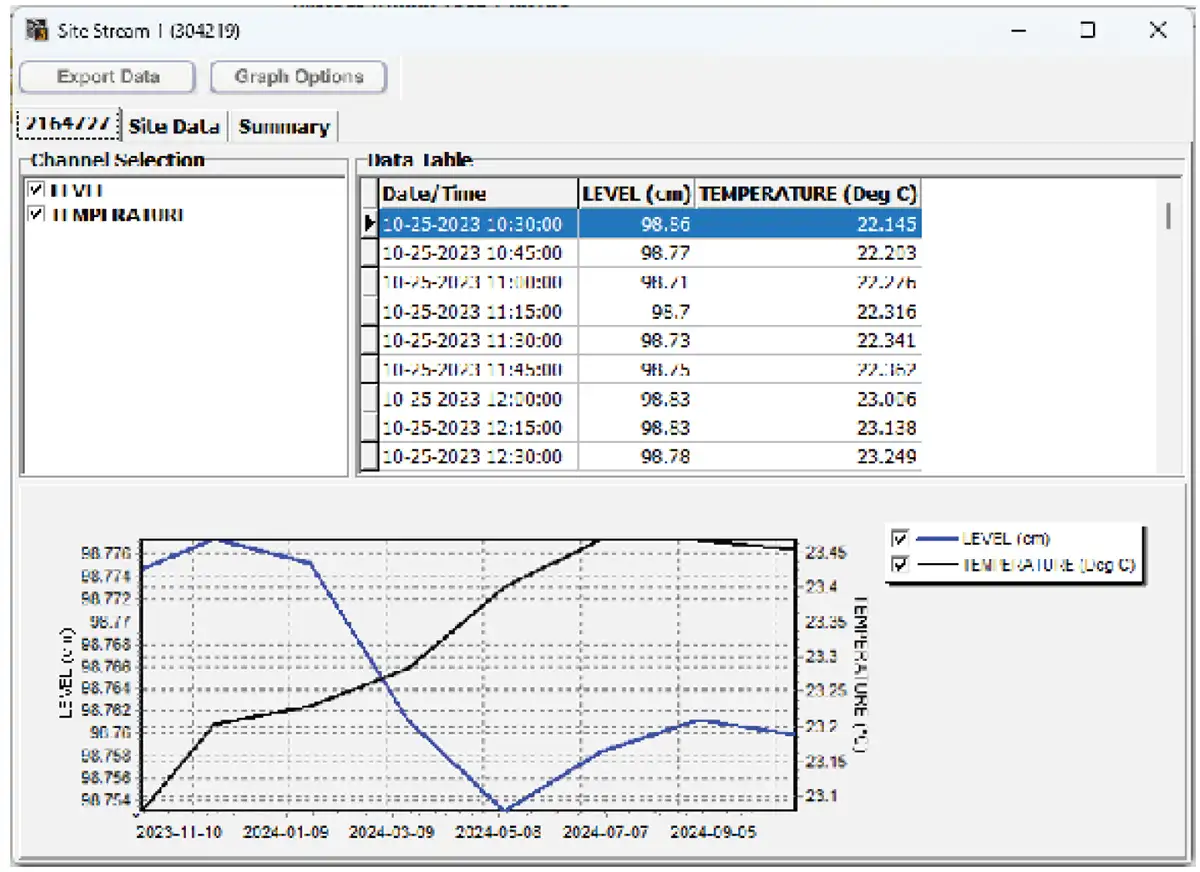
Figure 7-3 RRL 5 Station Data Window
The data will be displayed in a table at the top of the window, the bottom portion of the window will show the data graphed. Data from each datalogger is shown in a separate tab (identified by serial number), Station data, including battery voltage is also displayed in a separate tab. A summary of all data is in a separate tab.
7.2.1 View Compensated Data
If you have set up barometric compensation (see Section 4.3), check “Show Compensated Data” to view the automatically compensated data.
The compensated data will be in the units that the Levelogger was programmed to record in. E.g.: if your Barologger was set to record in psi and your Levelogger was set to record in feet, the compensated data will automatically be converted to feet.
The data will be displayed in a table at the top of the window, the bottom portion of the window will show the data graphed. Data from each Levelogger is shown in a separate tab (identified by serial number). To view raw Levelogger data (uncompensated), uncheck “Show Compensated Data”.
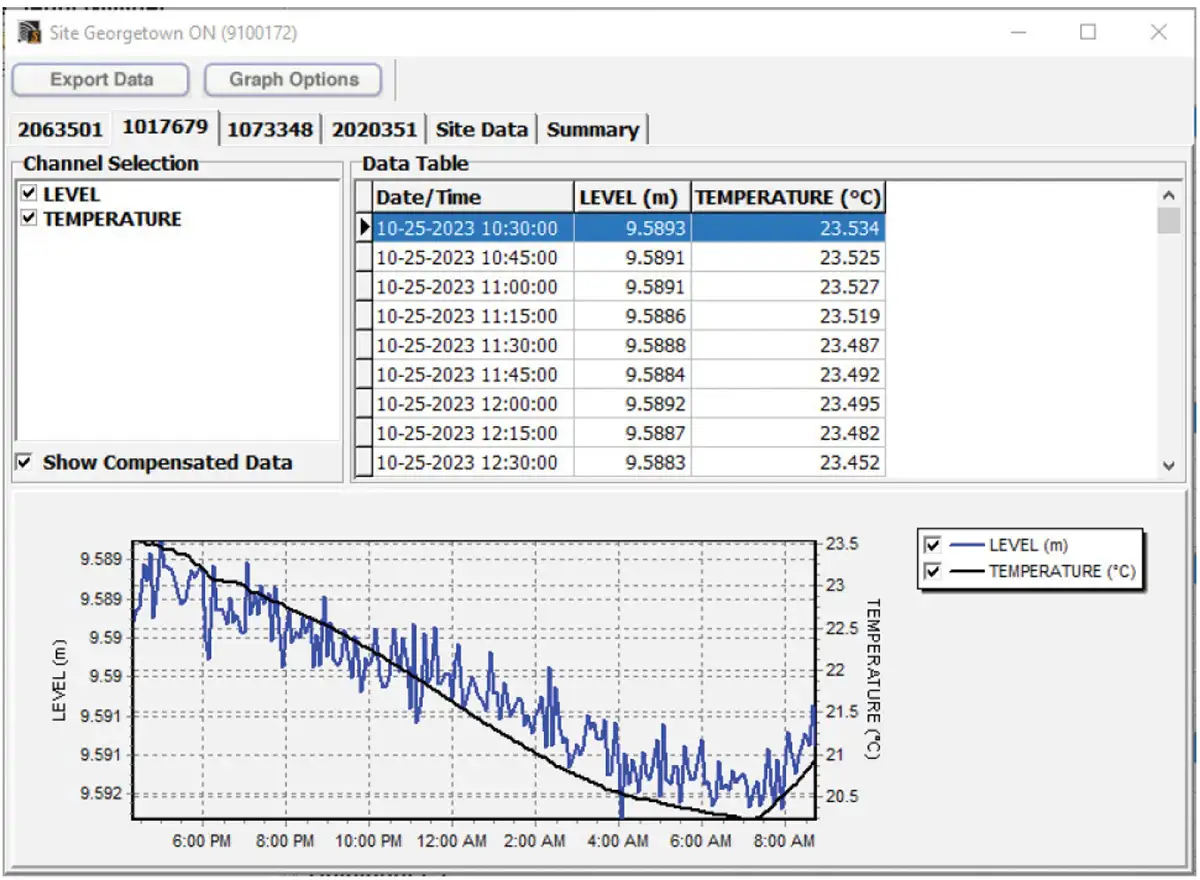
Figure 7-4 View Compensated Data
7.2.2 Graphing Options
Click the Graph Option icon to open the Graph Option Dialog. The Graph Dialog is shown in Figure 7-8.
The Line Option is used to adjust the style and colour of the line in the graph for each channel. The user can also select the shape of the data marker or remove the data marker.
The Title and Axis Option is used to enter the title of the graph and change the Y axis label or user selected scale. Check the Best Fit box to enable the software to determine the best fit scale. If the Best Fit box is not checked, the user has to enter a maximum and minimum value of the selected channel. The X axis is logging time.
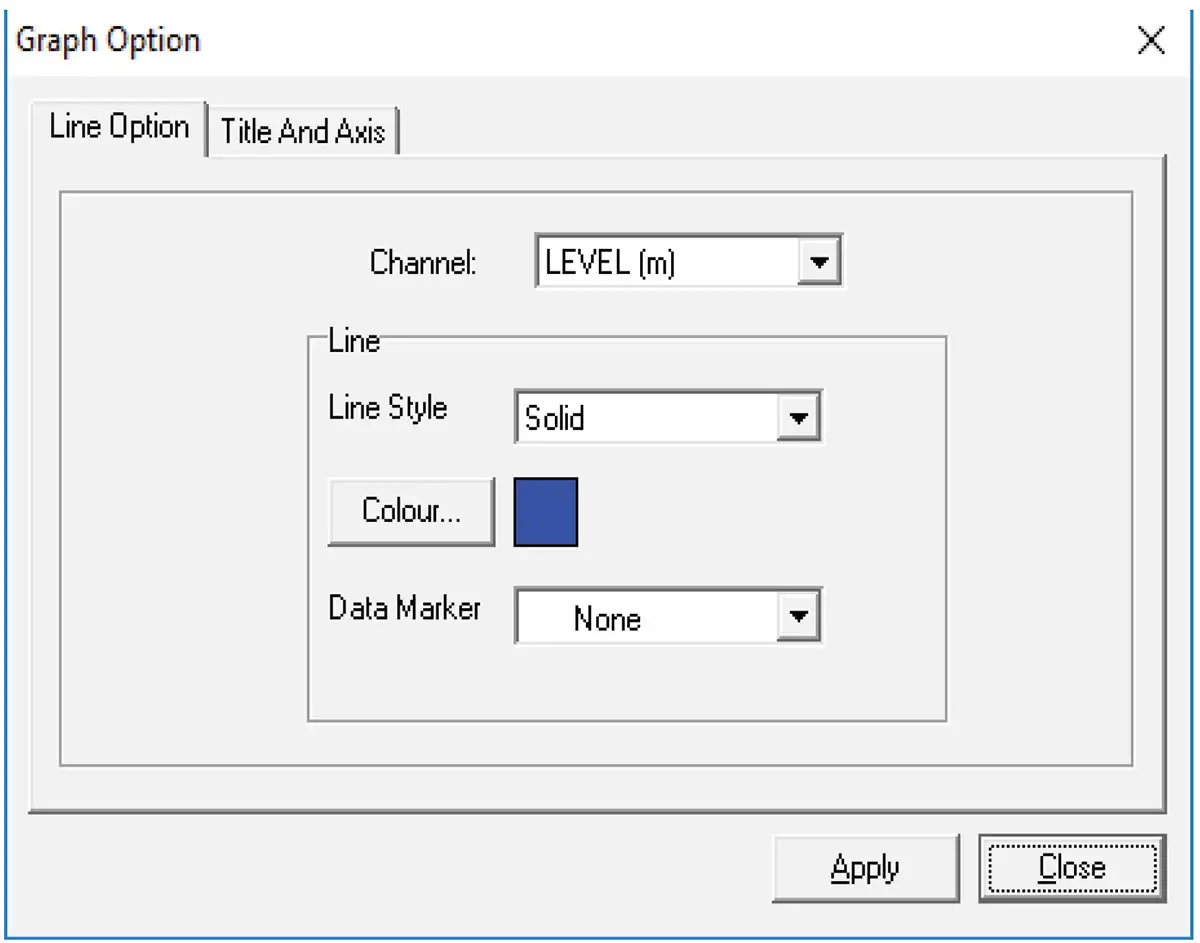
Figure 7-5 Graph Option Dialog Box
7.3 File Export
Data can be exported in *.csv (comma separated value), *.xle or *.lev (Levelogger/LevelVent) file formats by clicking Export Data while viewing the site data. The *.csv file format is supported and can be imported by most spreadsheet programs, *.xle files can be imported by Levelogger Software Version 4.0 and up, and *.lev files can be imported by any Levelogger Software Version, where data compensations can be performed.
Clicking Export Data will display a drop down menu where you can select to export as a *.csv, *.xle or *.lev file.
Note:
You can not export Rainlogger Data as a .lev file.
Exporting allows you to select a specific datalogger File. Choose the desired file from the list. The file name will include the datalogger serial number, and can be saved in a folder of your choice. You can also choose to rename the files. The files can be imported by the Levelogger Software, where barometric and other compensations can be performed.
Note:
For more information on data compensations using Levelogger Software, see separate User Guide.
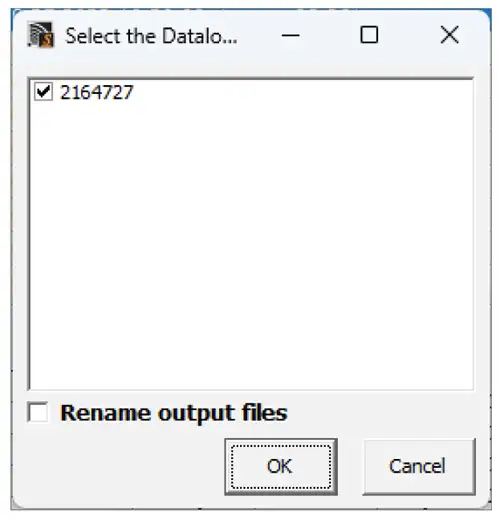
Figure 7-6 Select Datalogger
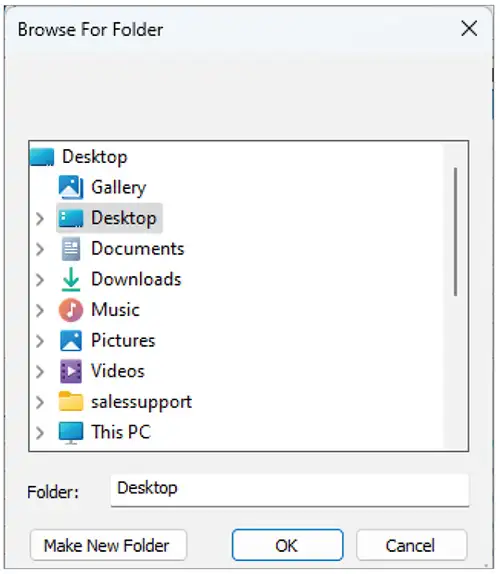
Figure 7-7 Save Data
7.3.1 Export All Data
Data from all RRL 5 Stations (and STS Sites) can be exported at one time, using the “Export all Stations Data” function in the File menu.
There is the option to save all the data in *.csv, *.xle , or *.lev files.
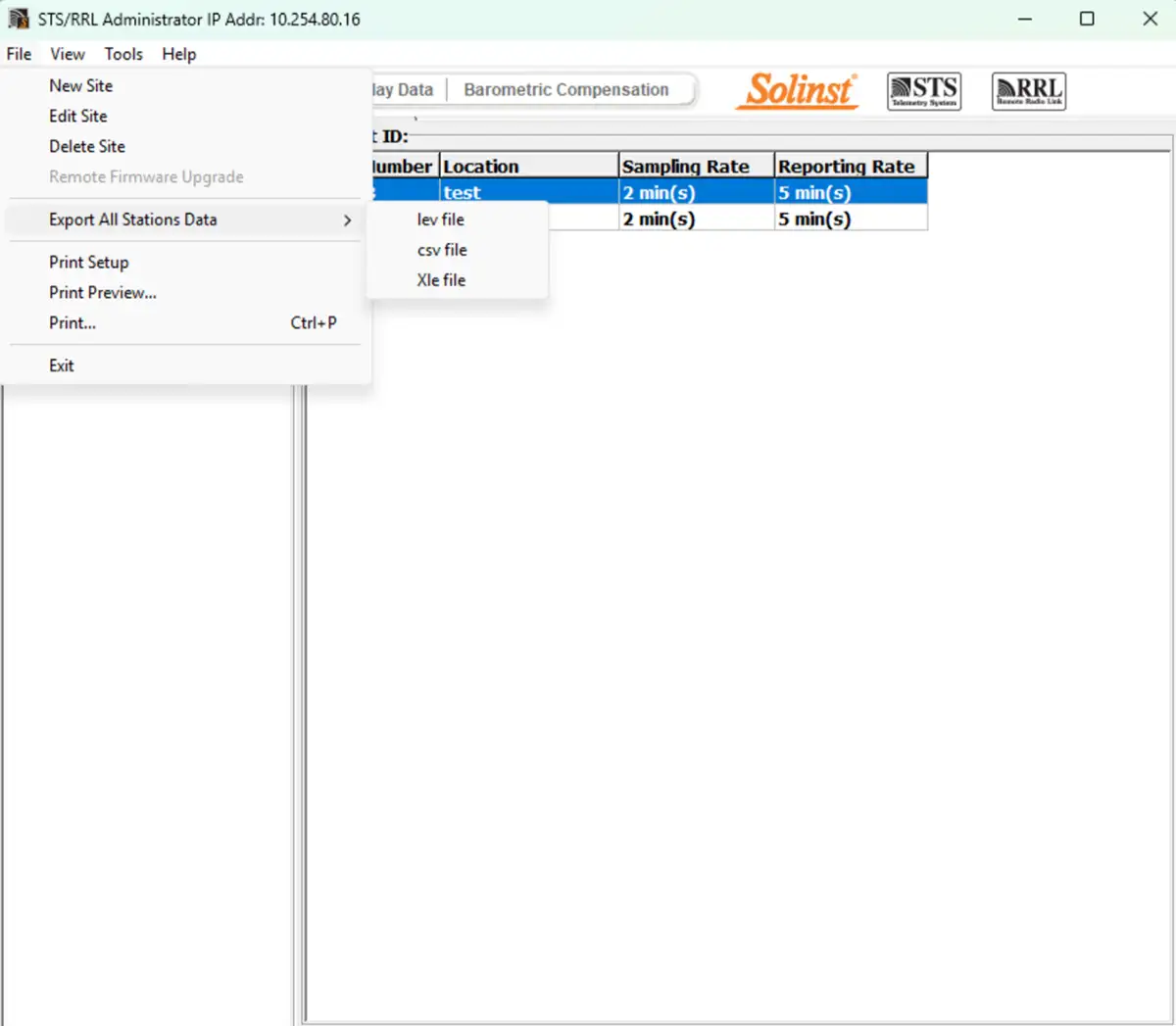
Figure 7-8 Export All Stations Data
Related Products
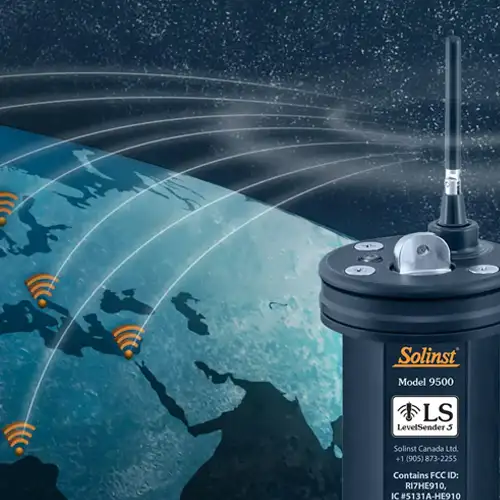
Plug and Play Telemetry
Already own Leveloggers? Quickly and easily upgrade your monitoring wells with LevelSender Telemetry. The 4G LevelSender telemetry system features an optional Solinst SIM card. It is set up for you in advance—with a low-cost plan managed by Solinst! An internal barometer provides automatically compensated water level readings; set high/low level alarms.
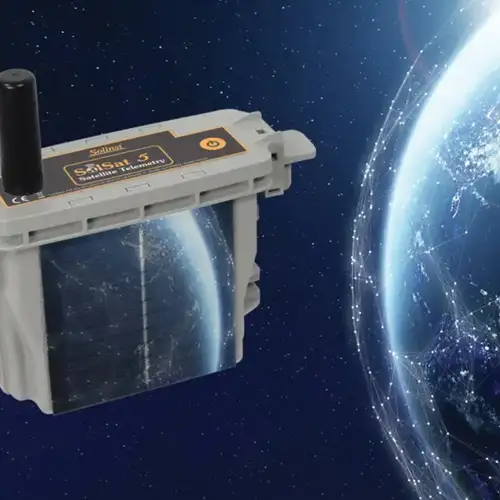
Discover Anywhere Monitoring
SolSat is a telemetry system that leverages Iridium satellite technology to provide global connectivity for Solinst 5 Series dataloggers. It uses low cost TextAnywhere global satellite messaging to send remote data to a secure web portal. It features a robust weatherproof enclosure for installation almost anywhere. Features built-in Wi-Fi setup app, solar panel, and barometer.
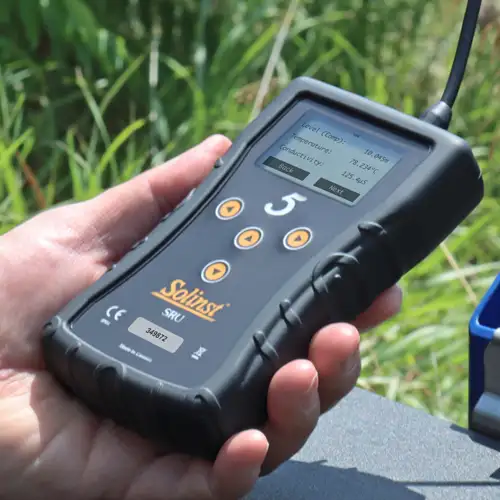
Solinst Readout Unit (SRU)
The Solinst Readout Unit (SRU) is a rugged, handheld device designed to connect to a deployed Solinst datalogger and display instant water level readings – with the option of automatic barometric compensation. Real-time logging and downloaded data can be saved and transferred to a PC. Quickly check the datalogger's status.
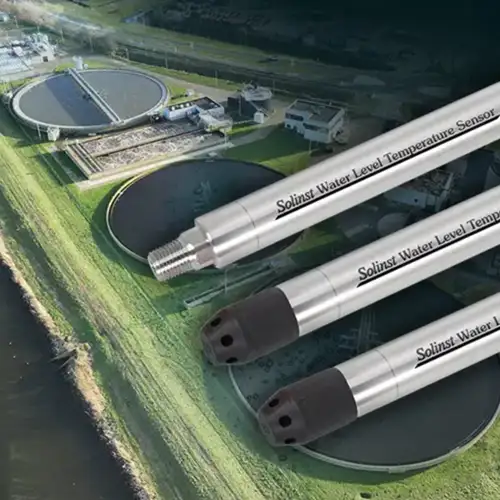
Versatile Submersible Water Level Transmitter
The 301 Water Level Temperature Sensor provides the option of highly accurate water level transmission using multiple protocols – MODBUS, SDI-12 and 4-20mA – for a wide variety of applications. This compact, all-in-one submersible hydrostatic level transmitter provides continuous, stable water level and temperature readings, with options for absolute and gauged pressure sensors.


