
Levelogger 6 Quick Start Guide
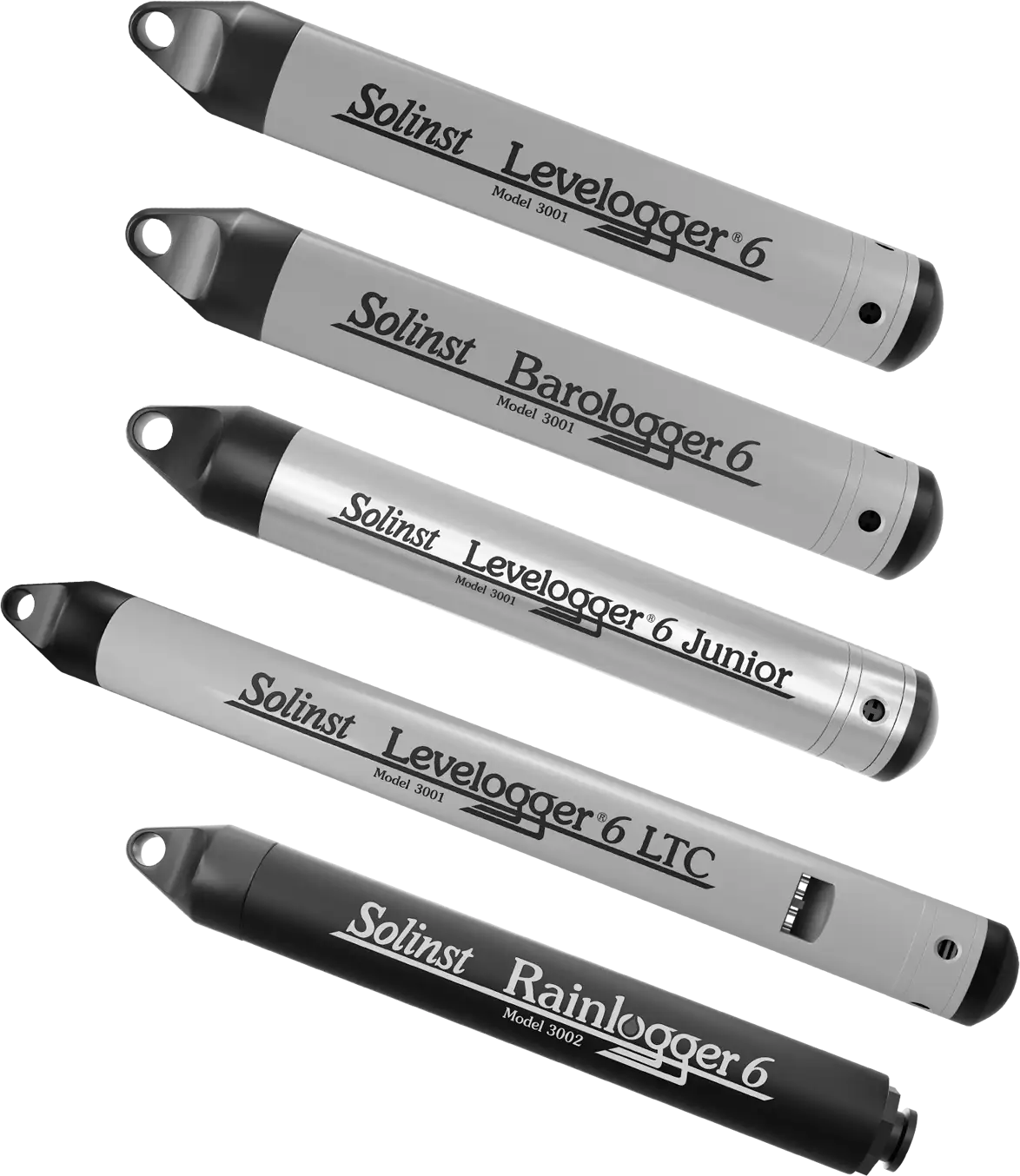
Table of Contents
- Installing the Software
- Installing the Hardware
- Programming the Levelogger
- Starting and Stopping the Levelogger
- Downloading and Working with Data
- Data Analysis
- Real Time View
- Compensate the Data
- Levelogger Field Measurement
- Levelogger Field Notes
- In-field Communication
- Maintenance
- Troubleshooting Guide
- Frequently Asked Questions
Installing the Software
To begin using your Levelogger, download the newest version of Levelogger Software and User Guide by visiting: https://downloads.solinst.com/
Installing the Hardware
Connect your datalogger to a computer using either the Optical Reader (Desktop Reader or Field Reader), or PC Interface Cable if your Levelogger is connected to a Direct Read Cable.
Optical Readers
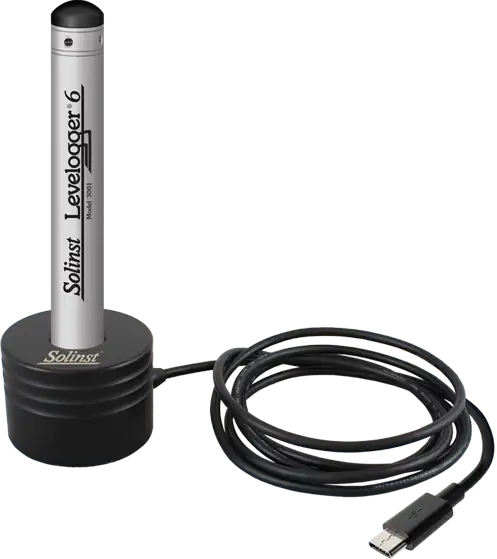
Desktop Reader
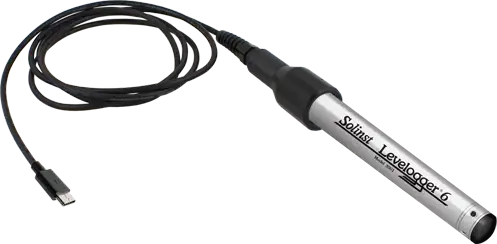
Field Reader
Mk3 PC Interface Cable
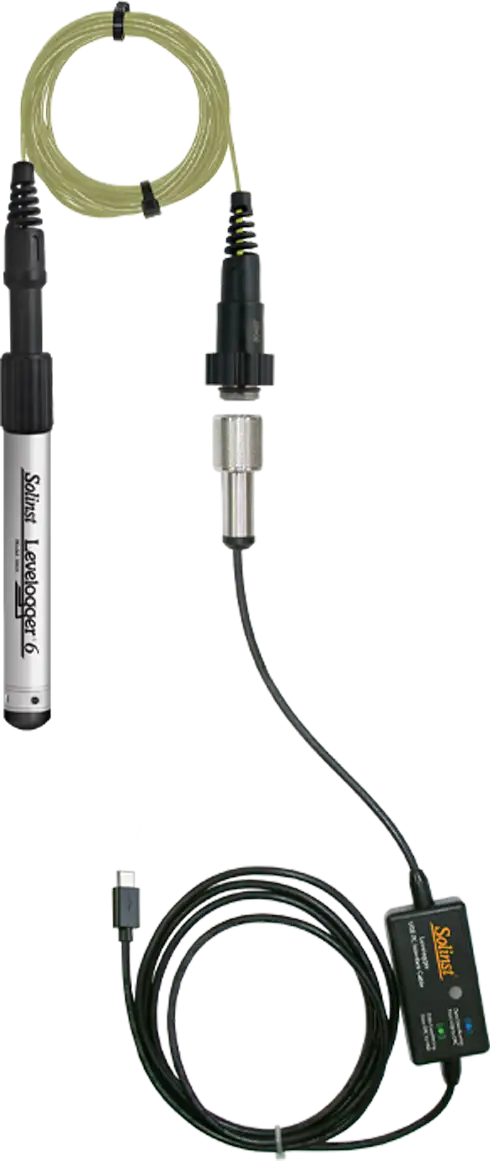
Direct Read Cable
Programming the Levelogger
Note:
Ensure the Levelogger is operating with the latest firmware, and that you are using the latest software. Visit the Solinst website (https://downloads.solinst.com/) or use the update notifications in the software for assistance. If older Levelogger versions are used, refer to our Compatibility Chart on the Downloads page.
- Connect the Levelogger to the communications device and start the software.
- Select the appropriate Com Port for the connected communications device from the centre drop-down menu.
- Click the ‘Retrieve Settings from Levelogger’ icon. This will retrieve and display information about the connected datalogger, and any current programmed settings.
- Diagnostic self-tests will be performed for the connected datalogger, and Direct Read Cable if an Mk3 PC Interface Cable is used. Full test results can be viewed in the ‘Diagnostic’ tab.
- You can now customize the Levelogger including your Project ID, Location, Sampling Mode and Rate, and Future Stop and Start times.

Note:
If you are using the datalogger with an SDI-12/MODBUS Cable, please see separate User Guides.
Tip:
 If a number of Leveloggers are to be programmed with identical inputs, clicking the ‘Save Default Settings’ icon will create a template.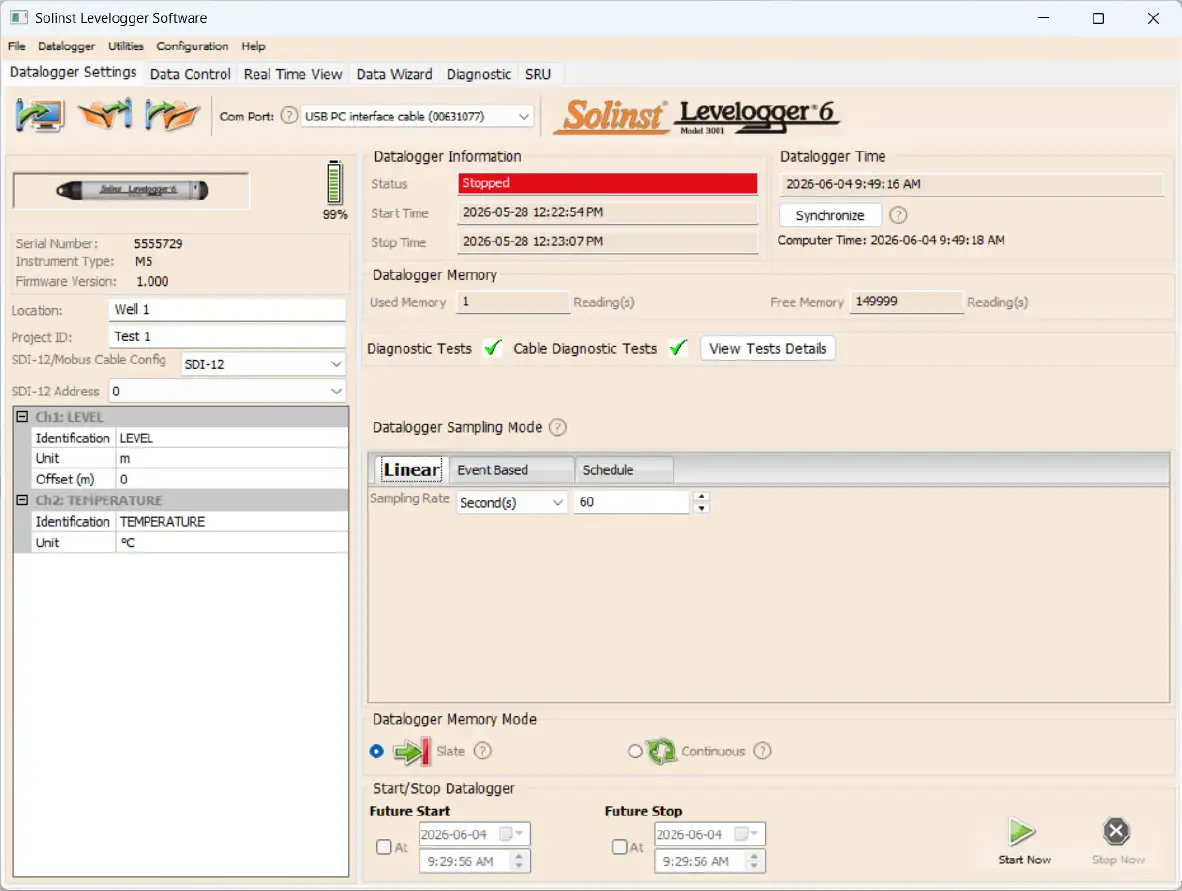
Datalogger Settings Window
Note:
Clicking on the in the software will provide you with a short explanation of that feature, e.g. Com Port, Slate Mode, Time Synchronization, etc.
Rainlogger 6 Programming
The Rainfall Calibration Constant ‘value’ of the tipping bucket rain gauge used with the Rainlogger is required when programming the Rainlogger 6. Consult the Levelogger User Guide for more information on programming the Rainlogger 6.

Levelogger 6 LTC Calibration
Before deploying your Levelogger 6 LTC, be sure to calibrate the instrument. To begin calibration, open the ‘Conductivity Cal’ tab and follow the steps provided. Consult the Levelogger User Guide for more information, or view the LTC Calibration Video on our YouTube Channel: https://www.youtube.com/user/SolinstCanadaLtd
Starting and Stopping the Levelogger
Note:
Levelogger 6 Junior and Rainlogger 6 do not have the Future Stop function.
- If desired, enter a Future Start and/or Future Stop Time. To start logging immediately, do not fill in a future start time and click the ‘Start Now’ icon.

Note:
Remember to download any data from the datalogger before starting a new logging session. When starting a new logging session, any data from previous recording sessions will be erased.
- All settings are applied to the Levelogger and it will start logging at the specified time.
- To stop the Levelogger immediately, click the ‘Stop Now’ icon.

Tip:
The ‘future start’ and ‘future stop’ options are ideal for synchronizing the data collection of multiple Leveloggers and Barologgers.
Downloading and Working with Data
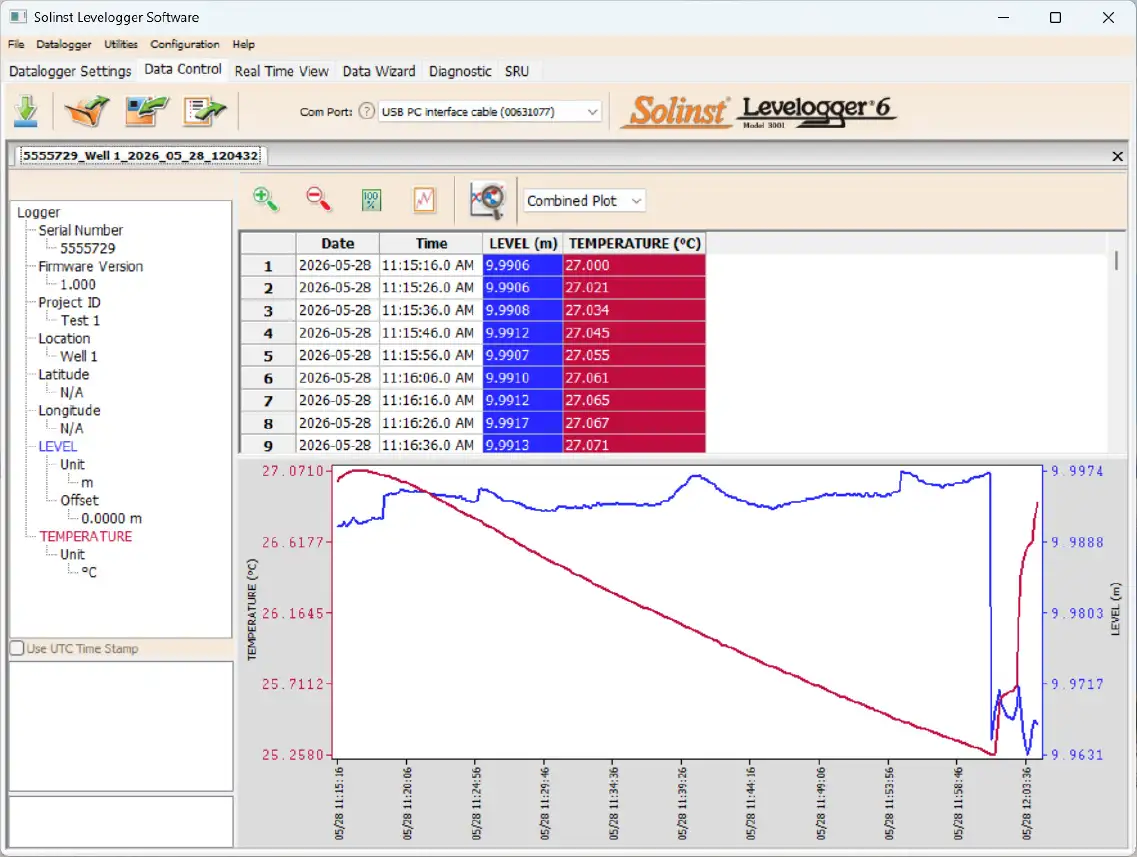
- Click the ‘Data Control’ tab to access the ‘Data Control’ window. This window is laid out in three sections: Levelogger settings, tabular data, and graphical data.
- To download the data from a connected Levelogger, select the ‘Download Data from Levelogger’ icon. There are four options for downloading data. They are: All Data, Append Download, Partial Download and Recover Previous Log. The data will be presented in both tabular and graphical format.

Note:
The default directory for downloaded and saved data is in the ‘Data’ folder:
<C:\Program\Files\Solinst\Levelogger 6\Data>. Data is saved as a .xle data file.
- To save data, click the ‘Save Data’ icon and input desired name for the saved file.

- To export the file for use in other software, click the ‘Export’ icon. The file can be exported to a *.csv or *.xml file.

Note:
To change the default directory for downloaded data, use the ‘Configuration’ menu at the top of the software window. Select ‘Application Settings’ and input or navigate to a different folder destination. Click ‘OK’.
Tips:
The *.csv and *.xml file formats are supported and can be imported by mostspreadsheet and database programs.
The data graph can be exported to a *.bmp file or a *.png file by clicking File > Export > Graph.
To merge separate .xle data files into one, go to File > Merge Files
Note:
You can check the box to Use UTC Time Stamps when viewing your data.
Data Analysis
 The Data Analysis function allows you to view your logged data as min, max, average, median, and standard deviation values per user-defined interval. Filters can tabulate data over user-specified intervals, including by the minute, hour, day, or week. Use the filters to extract information from logged data, create a new data series, graph it, and export it.
Real Time View
Real Time View provides on-screen measurement as data is being recorded by the connected datalogger. A view rate is set independently of the logging period of the Levelogger and does not interfere with internal logging taking place. To take a reading at any specific time, click  and that reading will be added to the displayed data. The data can be exported and saved.
Compensate the Data
Click the ‘Data Wizard’ tab to open the ‘Data Wizard’ window. In this window the ‘Wizard’ will guide you through Barometric Compensation, Manual Data Adjustments, and Parameter Adjustments on your open data files. There are two convenient options; Basic or Advanced compensation. This allows you to choose just one, two, or all three types of compensation. Multiple Levelogger files can be barometrically compensated at once, using one open Barologger file.
Tip:
‘Manual Data Adjustment’ allows you to use manual water level measurements to adjust your data to depth to water readings.
Levelogger Field Measurement
Levelogger 6 Ranges
Each model of Levelogger is rated for a specific submergence depth (Table 1). The choice of model largely depends on the accuracy of the water level required and the submergence depth. The selection, however, should be based on the maximum anticipated water level fluctuation.
Table 1 – Levelogger 6 Ranges
Measurement Fundamentals
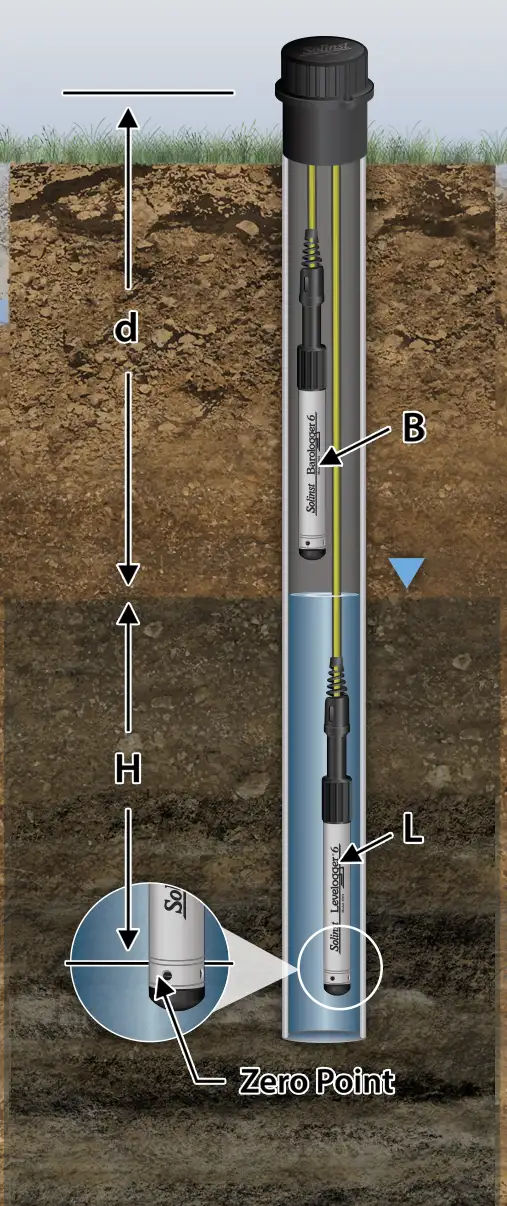
Leveloggers (L) measure the total pressure acting on a transducer at their zero point/sensor. The total pressure is caused by the column of water lying above the Levelogger pressure sensor AND the barometric (atmospheric) pressure acting on the water surface. To compensate for barometric pressure fluctuations and get true height of water column measurements (H), a Barologger (B) is required, i.e.:
Levelogger Reading (L) – Barologger Reading (B)
=
Height of Water Column (H)
Verifying Readings
The best recommendation is to compare barometrically compensated Levelogger data (H) with a manually measured depth to water level value (d) (using a Water Level Meter).
Tip:
To adjust all readings in your Levelogger file to depth to water below a well casing (d), record a manual water level measurement using a water level meter. This reading should correspond in date and time with an actual Levelogger recording. Use this as a reference datum in the Manual Data Adjustment option in the Levelogger Software Data Wizard.
Note:
The Levelogger 6 can withstand over-pressurization of 2 times the intended range, e.g. a Model M10 can accommodate a fluctuation of 20 meters or 65 feet and still record pressure. However, over-range accuracy is not guaranteed.

A single Barologger 6 can be used to compensate all Leveloggers on site, within a 30 km/20 mile radius and with every 300 m (1000 ft.) change in elevation. Ensure that your Barologger will start logging within at least 3 hours of your Levelogger start time.
Levelogger Field Notes
Tip:
It is recommended to take a manual water level measurement before installing a Levelogger, shortly after installation, periodically during your monitoring interval, and at the end of your measurement period. Use these measurements to verify Levelogger readings, and for data adjustments later on. Ensure you take manual readings as close in time as possible to a scheduled Levelogger reading.
Before Deployment
Before deployment, make sure you do the following:
- Program your Levelogger, using Levelogger Software, with the correct project identification, memory mode, sampling regime, time, etc.
Note:
It is useful to synchronize the times of all Leveloggers and Barologgers being used for the same project.
- Set a future start time, or start the Levelogger if deploying on a wireline/Kevlar cord (Leveloggers can be started after deployment if using a Direct Read Cable)
- Determine borehole depth to ensure the Levelogger does not touch the bottom of the well (avoid submergence in sediment)
- Determine the minimum and maximum expected water levels, as Leveloggers must remain submerged for the entire monitoring period, and Barologgers must not be submerged
- Use a Solinst Model 101 or 102 Water Level Meter to take a manual depth to water measurement that will be used to verify Levelogger readings
Note:
If you are using an old style Direct Read Cable with a Levelogger 6 Series datalogger, you will need to use an L5/L6–Edge DRC Adaptor.
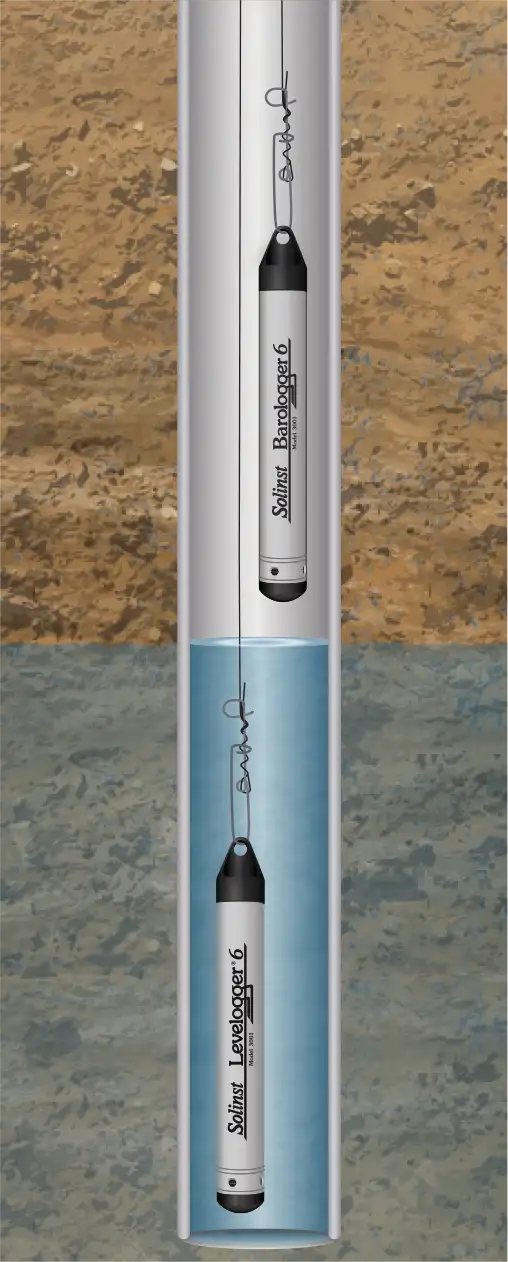
Wireline/Cord Deployment
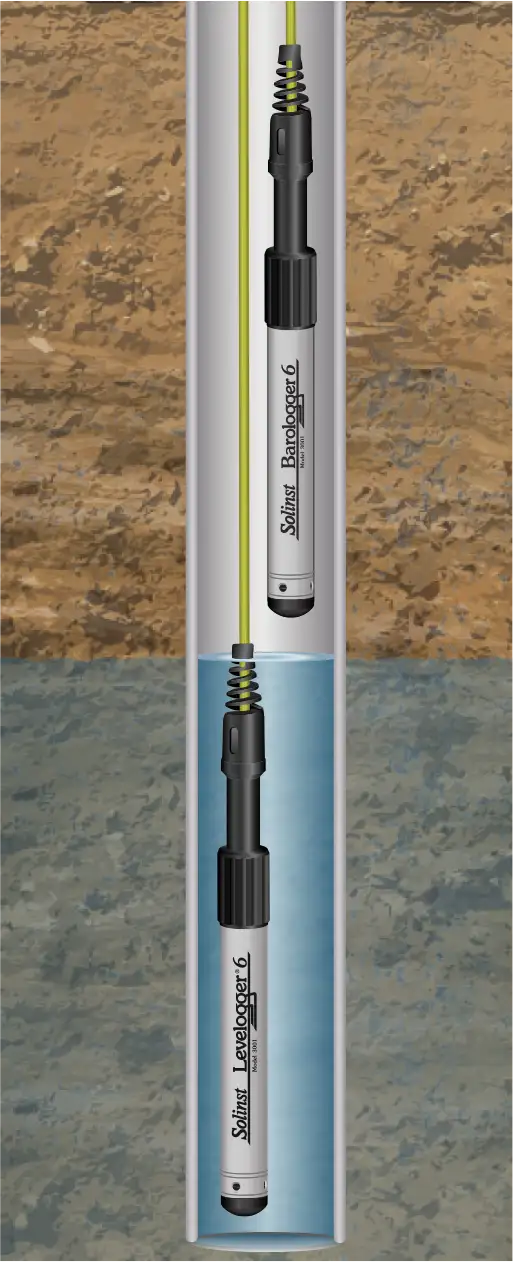
Direct Read Deployment
Deployment
- Deploy your Levelogger and Barologger using a Direct Read Cable for down-well communication, or use an inexpensive wireline or Kevlar cord.
Note:
For information on other types of installations, see the latest Levelogger User Guide.
- Install the Barologger in a similar thermal environment as the Levelogger
- The Barologger should be suspended beyond the frost line and deep enough to avoid large temperature fluctuations
- Ensure the Barologger location is vented to atmosphere
After Deployment
After deployment, make sure you do the following:
- Take a manual depth to water measurement after the well has stabilized (approximately 10 minutes)
- Take another manual depth to water measurement just before removing the Levelogger from the well
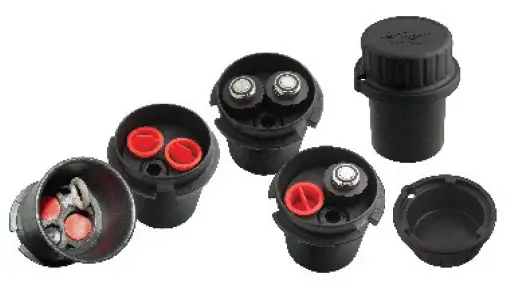
Well Caps
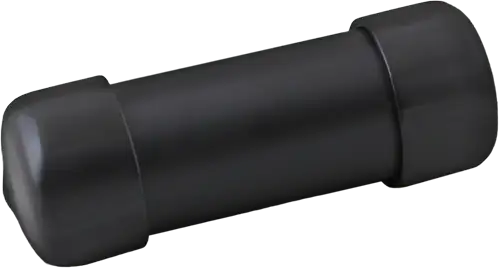
The Model 3001 2″ (or 4″ with Adaptor) Well Cap Assembly provides a secure method of installing your Levelogger using wireline/Kevlar cord or Direct Read Cables. A Support Hanger Bracket is available for supporting and organizing down well wires or cords, or for coiling extra Direct Read Cable lengths.

In-field Communication
If you have installed your Levelogger using wireline/Kevlar cord, you can communicate with your Levelogger via a Field Reader or Desktop Reader and Levelogger Software on a laptop.
If you have installed your Levelogger using a Direct Read Cable, you can communicate with your Levelogger via a PC Interface Cable and Levelogger Software on a laptop. You can also use a Levelogger App Interface and the Solinst Levelogger App on your mobile device, or connect an SRU or a DataGrabber, without removing the Levelogger from the well.
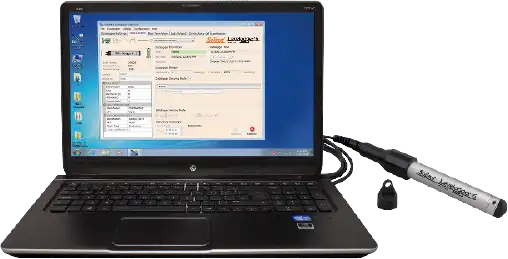
Field Reader
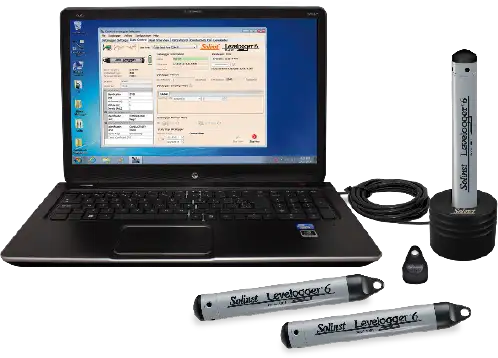
Desktop Reader
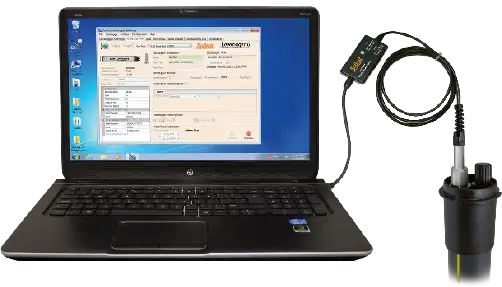
Mk3 USB-C PC Interface Cable
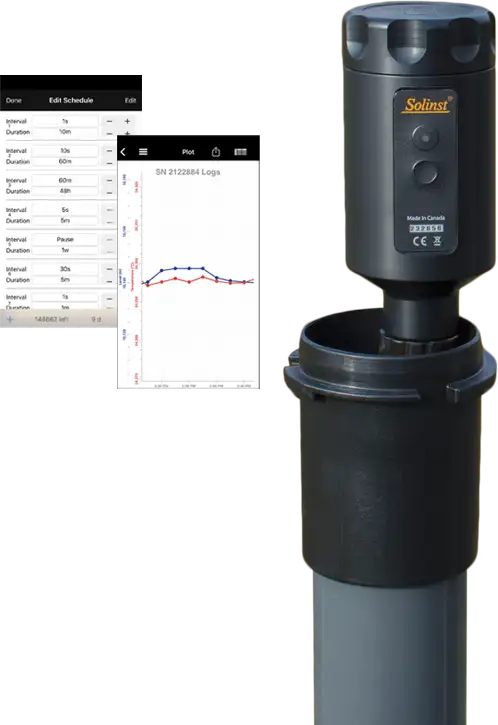
Levelogger App Interface
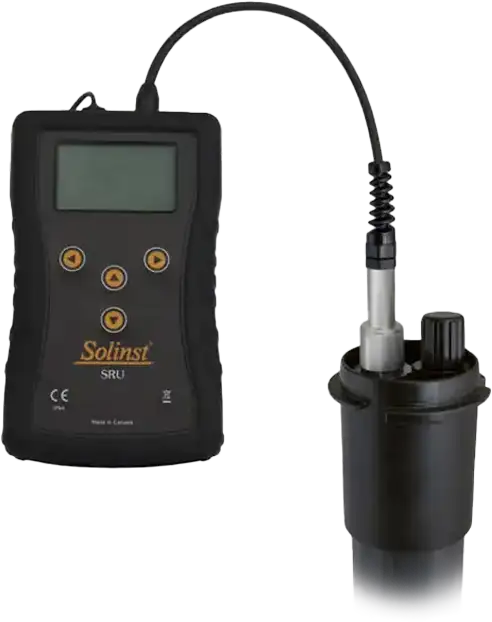
SRU Solinst Readout Unit
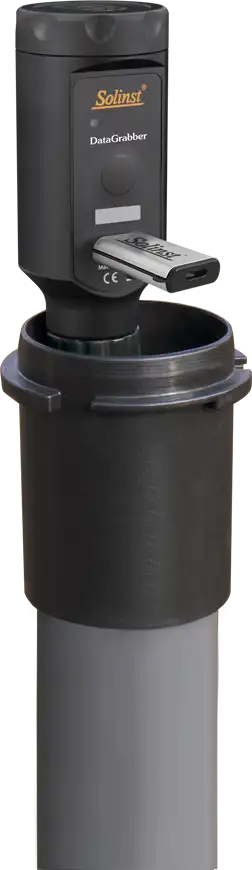
DataGrabber
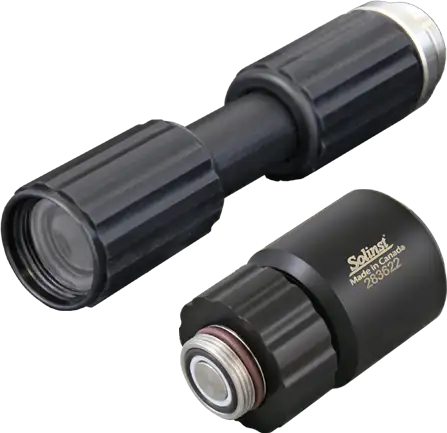
Note:
A Threaded or Slip Fit Adaptor can be used to directly connect a Levelogger to a Levelogger App Interface, SRU or DataGrabber.
Maintenance
As with any monitoring project, you should select the proper equipment and determine a maintenance schedule based on the environment specific to your application.
Maintenance tips include:
- Inspect regularly, and replace the o-ring at the optical end of the Levelogger if damaged
- Clean the optical eye of the Levelogger with a clean, soft cloth or cotton swab
- Rinse the Levelogger body using a mild, non-residual, non-abrasive household cleaner
- Use a very soft-plastic bristled brush, if needed, to clean the Levelogger body
- Do not insert any object through the circulation holes at the sensor end of the Levelogger
- See the Levelogger User Guide Maintenance Section if simple household cleaners are not sufficient for certain issues, such as hard water build up
- Clean Levelogger 6 LTC conductivity sensor pins before calibration and before/after deployment—see the Solinst Levelogger User Guide
- Stop the Levelogger from recording before storing
- Store Leveloggers with the installation cap on and in the case they were originally provided in
- Store Leveloggers in above-freezing conditions
- Read our Technical Bulletin “Ensuring Proper Use and Maintenance of Leveloggers”
Note:
A Solinst Biofoul Screen can be used to protect the Levelogger 6 from biofouling on the pressure sensor, and the conductivity cell of a Levelogger 6 LTC.

Note:
All Leveloggers should be deployed and stored with the installation cap or Direct Read Cable attached. This prevents unnecessary battery drainage and protects the optical eye.
Troubleshooting Guide
Levelogger Software:
- You must have administrator privileges to install software on a computer.
- Windows 10 and 11 Operating Systems support Levelogger Software.
Communication Errors:
“Port Cannot Open”, “Check Com Port”
- Reason: Software was started before USB device was connected to computer.
Solution: Restart computer, connect USB device, start software. - Reason: Incorrect Com Port is selected in Com Port selection menu.
Solution: Check the Com Port location for the installed device, by accessing the ‘Device Manager’ (through the Control Panel), and selecting the “Ports” section. This will state the Com Port the device is installed on. - Reason: Another device shares the same Com Port or is causing a communication conflict.
Solution: Ensure that software for PDA or other devices, which automatically synchronize, are disabled. Ask your system administrator for assistance.
“Communication Time-Out”, “Communication Error”
- Reason: Levelogger, Direct Read Cable, or communications device has failed.
Solution:
- Narrow down the failure by using a different Levelogger, Direct Read Cable, or another communications device.
- Clean the optical eye/lens on the Levelogger and Optical Reader (Desktop Reader or Field Reader), or Direct Read Cable, with a soft cloth.
- Check that the communication cable is connected to the same Com Port that is chosen in the upper middle of the Levelogger Software window.
- Try using a different computer, to see if this is the cause of the problem.
- If using a laptop (especially in conjunction with a Direct Read Cable) your Com Port may not be powered adequately to receive/transmit data. Try using a desktop computer to test this.
- If problem persists, contact Solinst.
Frequently Asked Questions
How can I protect my Levelogger from corrosive or marine environments?
The Levelogger 6 and Levelogger 6 LTC have a corrosion resistant coating. In harsher chemical environments, you can protect the Levelogger using a thick membrane balloon (e.g. helium) filled with non-corrosive/non-toxic fluid (tap water). As pressure changes, the fluid encasing the dataloggers will transmit the pressure differential to the datalogger’s pressure transducer, without exposing it to corrosive conditions. Continual monitoring is recommended to assess the effectiveness of the protection at your site.
How do I install my Levelogger in a surface water application?
For installations within rivers, streams, wetlands, lakes and watershed or drainage basin monitoring, the shallow pressure range (M5) Levelogger 6 or Levelogger 6 Junior should be considered. For installation in streams or rivers, stilling wells can be constructed which shield the instrument from the water turbulence. Alternatively, Leveloggers can be lowered into a protective pipe or casing and then attached to a permanent fixture such as a bridge, pier or hand driven marker/rod.
How do I protect my Levelogger from freezing?
To avoid icing/freezing and transducer damage, the easiest method is to lower the transducer to a point in the water column below the frost line or ice formation depth. In water bodies such as shallow streams, wetlands or ponds where icing/freezing may penetrate to the bottom, install the Levelogger in a vented stilling well embedded into the bottom of the water body beyond the frost line.
If this is not possible, place the Levelogger inside a thick membrane balloon filled with a non-toxic, non-corrosive anti-freeze solution or saltwater solution. Place the balloon in a section of perforated, 30 mm (1.25") ID pipe and install the datalogger in the monitored water. The antifreeze solution will protect the Levelogger from ice expansion at the pressure transducer, yet transmit any pressure and temperature fluctuations that occur.
How do I protect my Levelogger from biofouling?
Use the Solinst Model 3001 Biofoul Screen.
Is Levelogger maintenance required?
Yes, consult the Solinst Technical Bulletin “Ensuring Proper Use and Maintenance of Leveloggers” to maintain the long life of your instrument, based on the monitoring environment specific to your application.
Related Blog Posts
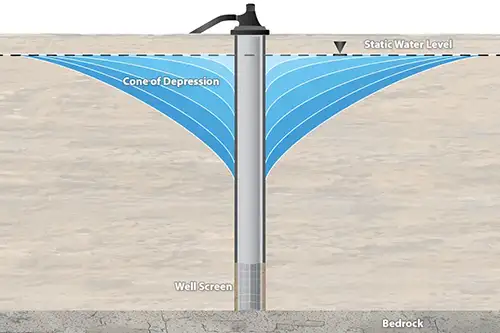
A importância de medir o drawdown
Como usar um registrador de nível e um medidor de nível de água Medidor de Rebaixamento de Nível de Água 101D juntos fornecem dados essenciais O que é rebaixamento? Drawdown é uma alteração no nível da água subterrânea devido a um estresse aplicado, causado por eventos como: Bombeamento de um poço Bombeamento de um poço vizinho Captação intensiva de água da área local Declínios sazonais à medida que as taxas de recarga diminuem Como o rebaixamento é medido?
Related Products
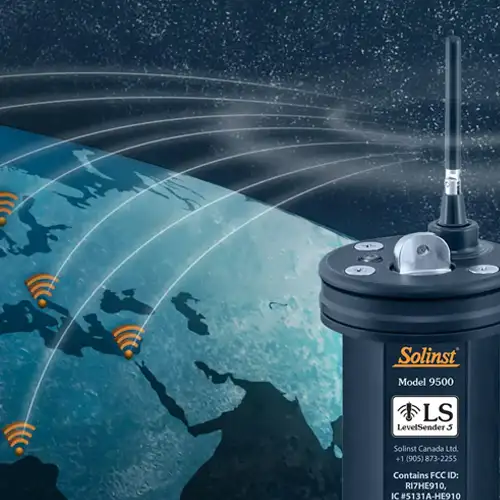
Telemetria Plug and Play
Já possui Leveloggers? Atualize de forma rápida e fácil seus poços de monitoramento com a telemetria LevelSender. O O sistema de telemetria 4G LevelSender conta com um cartão SIM da Solinst opcional. Ele é configurado para você antecipadamente - com um plano de baixo custo gerenciado pela Solinst! Um barômetro interno fornece leituras de nível de água compensadas automaticamente; defina alarmes de nível alto/baixo.
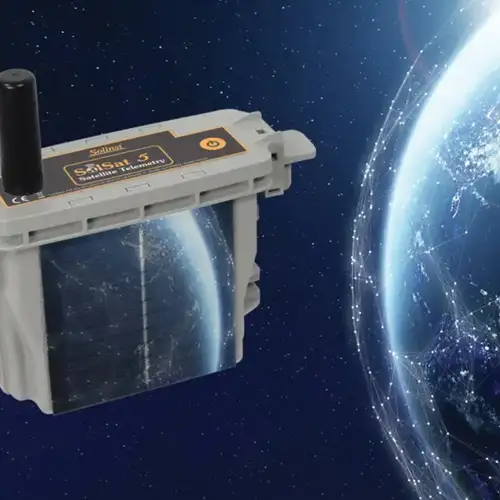
Descubra o monitoramento em qualquer lugar
SolSat é um sistema de telemetria que utiliza a tecnologia de satélite Iridium para fornecer conectividade global aos registradores de dados Solinst Série 5. Ele usa mensagens globais via satélite TextAnywhere de baixo custo para enviar dados remotos a um portal seguro da Web. Ele apresenta um gabinete robusto à prova de intempéries para instalação em praticamente qualquer lugar. Possui aplicativo de configuração de Wi-Fi integrado, painel solar e barômetro.
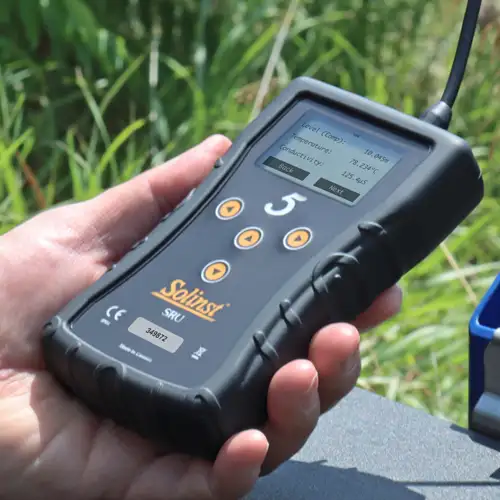
Unidade de leitura de soluto (SRU)
A Unidade de leitura de Solinst (SRU) é um dispositivo portátil e robusto projetado para se conectar a um registrador de dados Solinst implantado e exibir leituras instantâneas do nível de água, com a opção de compensação barométrica automática. O registro em tempo real e os dados baixados podem ser salvos e transferidos para um PC. Verifique rapidamente o status do registrador de dados.
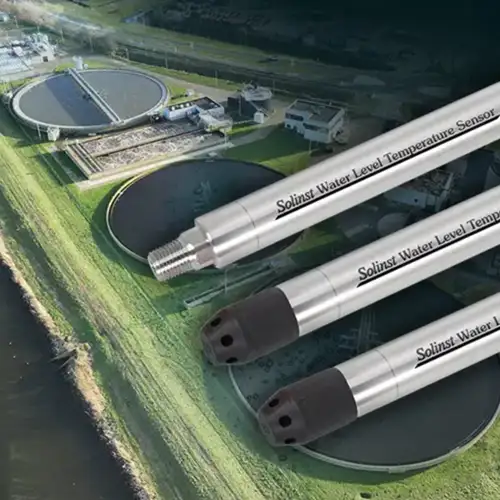
Transmissor de nível de água submersível versátil
O 301 Sensor de temperatura do nível de água oferece a opção de transmissão altamente precisa do nível de água usando vários protocolos - MODBUS, SDI-12 e 4-20 mA - para uma ampla variedade de aplicações. Esse transmissor de nível hidrostático submersível compacto e multifuncional fornece leituras contínuas e estáveis do nível de água e da temperatura, com opções para sensores de pressão absoluta e aferida.
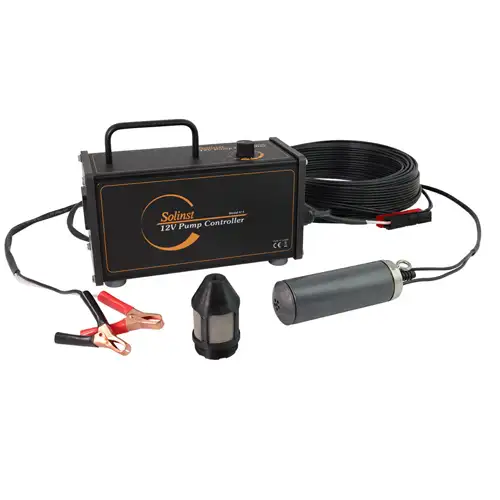
Bomba submersível 415 12V
A bomba submersível Bomba Submersível Solinst 12V fornece um meio eficiente de purgar e obter amostras de água subterrânea de poços de monitoramento de 2" de diâmetro externo. A bomba compacta pode coletar amostras de profundidades de 36,5 m (120 pés) abaixo da superfície do solo e é fácil de ajustar as taxas de fluxo de até 13,5 L/min (3,6 US gpm) em aplicações mais rasas.


